Support / Map editor / Throw and blowing lines Search help
Throw and blowing lines
Show Yarbo which way to throw snow or blow leaves. Click the border twice, where the line starts and where it ends, and Yardstick places the line along the border exactly as the Yarbo app does.
Yellow lines show where the snow blower throws snow and orange lines where the leaf blower blows leaves. The Yarbo app only uses a line it recognizes as part of a shape: on a work area the line runs along the border itself, and beside a pathway or sidewalk it runs 0.30 m (1 ft) to one side. A line clicked in anywhere else can end up too far from the border for the Yarbo app to recognize it, so Yardstick places it for you, exactly where the Yarbo app would.
It works the same in the installed Yardstick and in Yardstick Anywhere.
Add a line
Open the map editor
You do not need to select anything first. Where two areas share a border, select the area you want first, so the click goes to that one.
Press + Throw line or + Blowing line
Both are in the Lines group of the toolbar. Either kind can be added whatever is attached to the robot, and its layer turns on so you can see it.
Click the border where the line starts
Near a corner, the click lands exactly on the corner. A bar above the map names the area the line is on.
Move the pointer along the border
A preview follows the border, corner by corner, and the bar shows how long the line is. It goes the short way round. To go the long way, move the pointer along the border that way first. You can go all the way round, back to where you started.
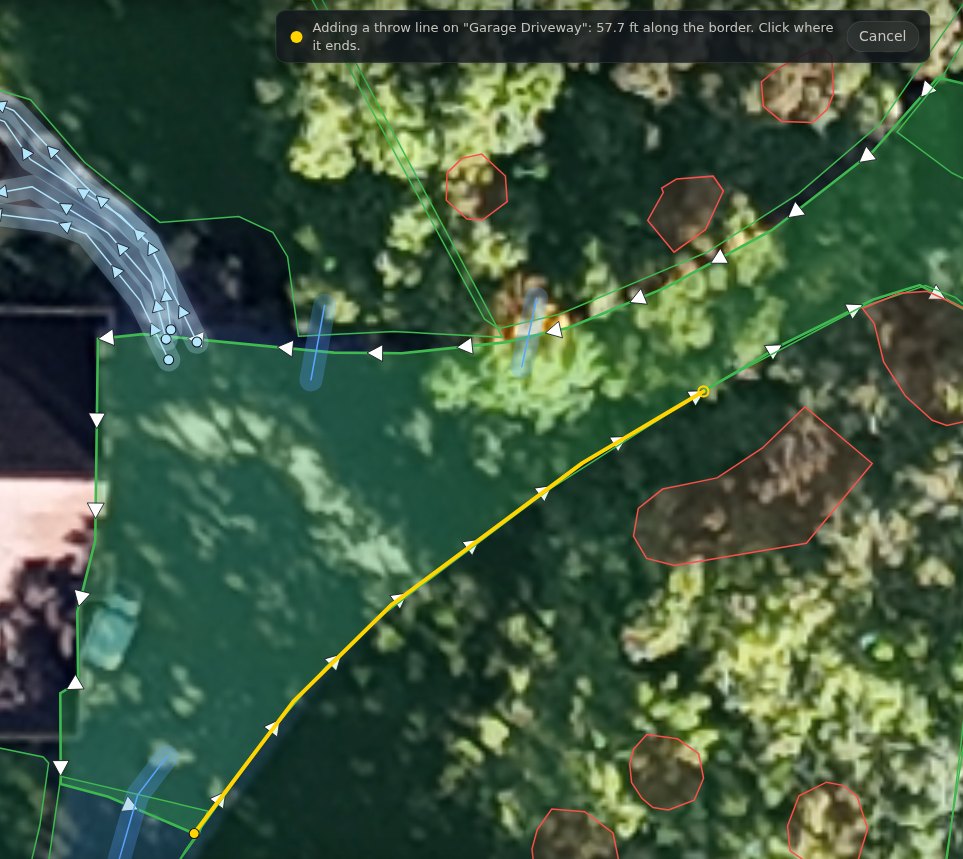
Click where it ends
The line is placed along the border between your two clicks and comes up selected. Enter places it at the pointer too; Esc or Cancel stops without adding anything.
Press Save changes
Nothing reaches the robot until you save. Yardstick backs up your map first.
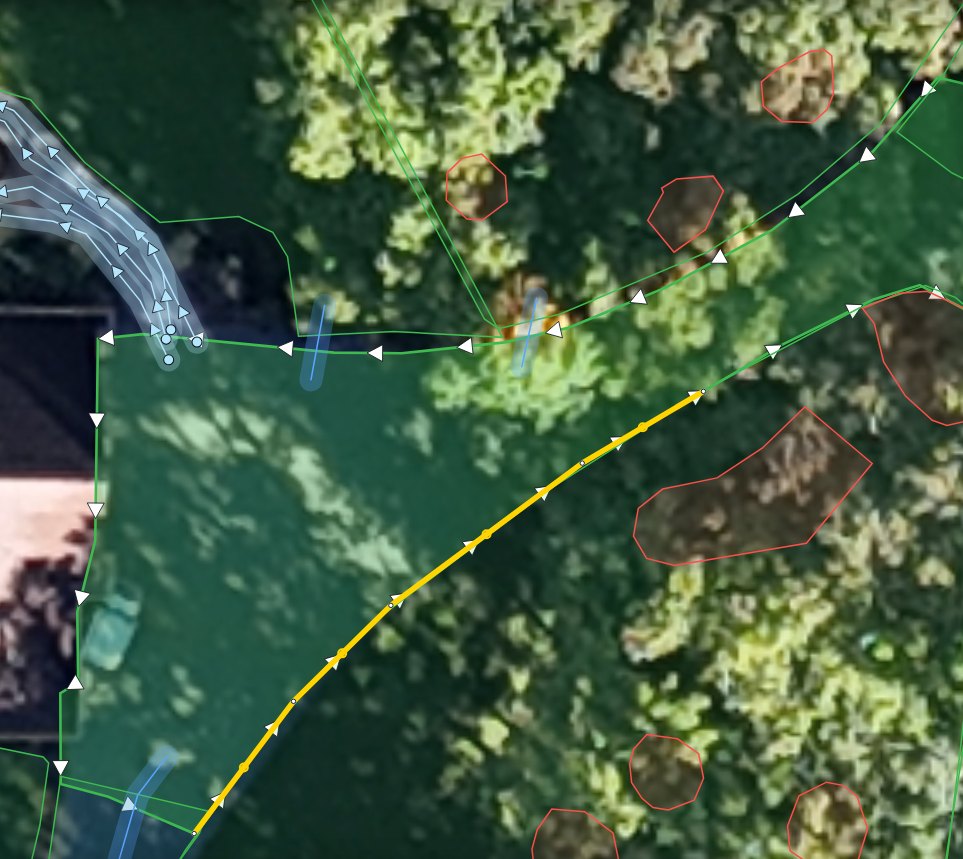
Beside a pathway or sidewalk
A pathway or sidewalk has no border of its own, so the line runs beside it, 0.30 m (1 ft) from its middle, on the side your pointer is on: the same place the Yarbo app puts it. Inside a bend it takes the bend in one point, as the Yarbo app does. Throw lines go on pathways and sidewalks; blowing lines go on pathways.
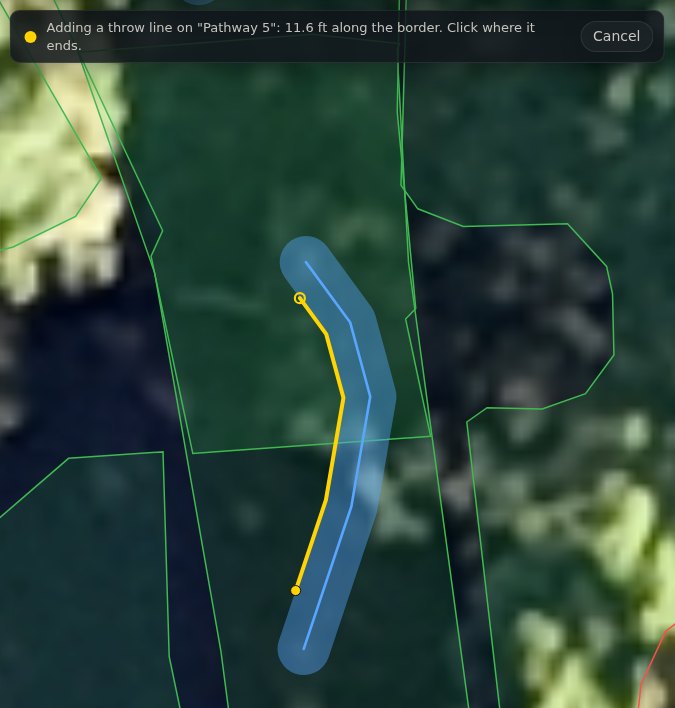
The Yarbo app's rules
Yardstick follows the same rules as the Yarbo app, so a line that saves here works there.
Change or delete a line
Select it
With Select, click the line. It thickens and its points appear. Tick Throwing direction or Blowing direction in Layers if you cannot see it.
Delete it
Press Delete throw line or Delete blowing line. Only the line goes; the area stays as it was.
To move it, add it again
Dragging a point away from the border can leave the line where the Yarbo app does not recognize it. To change where a line runs, delete it and add it again in two clicks.
If it does not work
The line went on the wrong area
Where two areas share a border, the click goes to the nearest one. Press Cancel, select the area you want, then press the button again.
“Needs to be at least ... long”
The line is shorter than the Yarbo app allows. Click further along the border.
Nothing happens when I click
The click was too far from a border. Zoom in and click on the border itself.
The line went the wrong way round
It goes the short way unless you trace the long way first. Press Undo and add it again, moving the pointer along the border the way you want before the second click.