Support / Map editor / Driveway sweep Search help
Driveway sweep
Clear your driveway with the leaf blower. One click on the driveway in the map editor draws the whole route and makes a plan you can run.
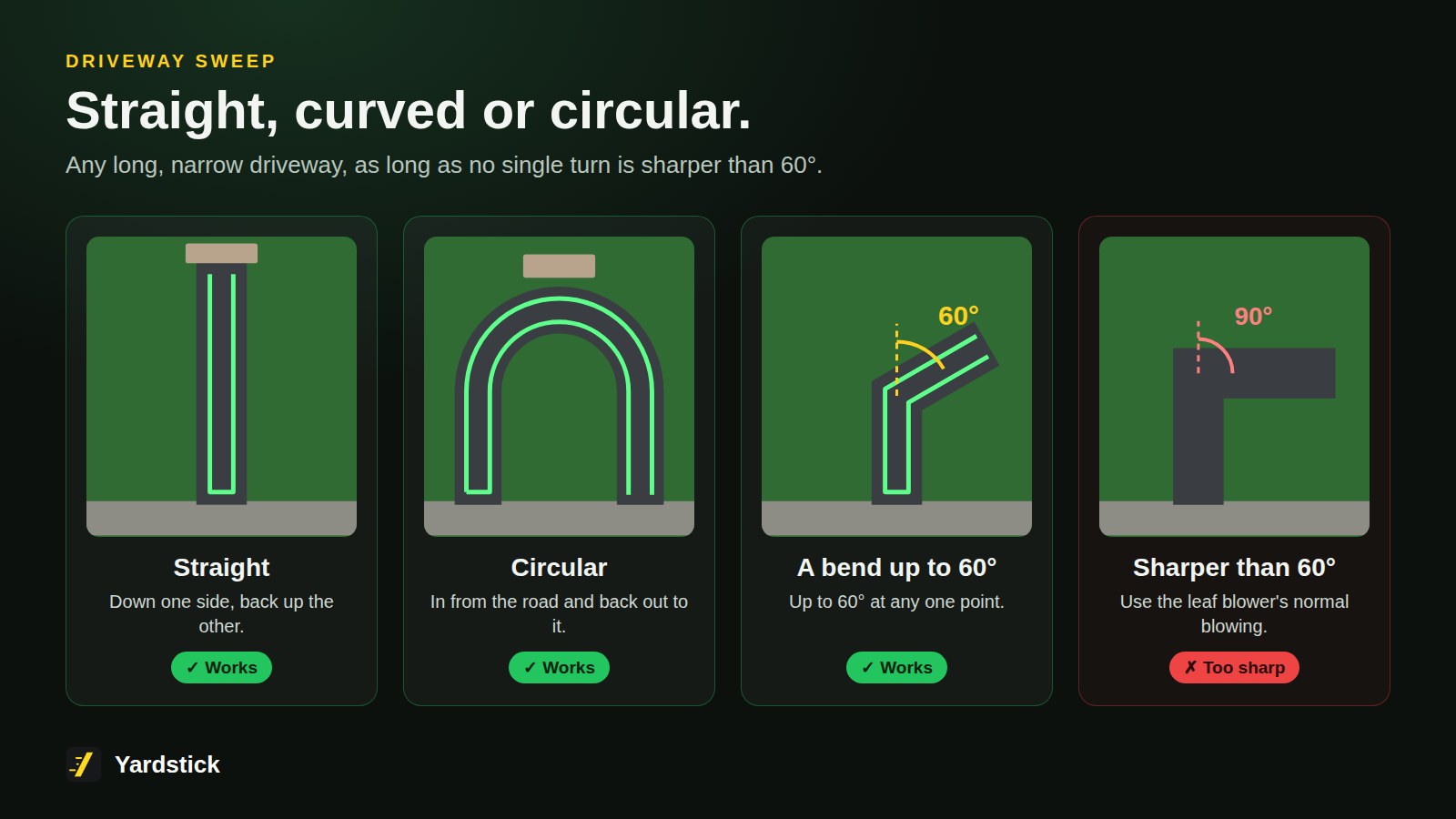
It works the same in the installed Yardstick and in Yardstick Anywhere. Your driveway must already be a work area on your map. Driveway sweep works on any long, narrow driveway with two ends: straight, curved, or circular, coming in from the road and going back out to it. It supports turns of up to 60° at any one point. It refuses a driveway that is too short, or one that turns more than 60° at one point, and says so.
Draw the sweep
Open the map editor and select your driveway
Click the driveway on the map, or find it in the Shapes list. Any attachment can be on the robot while you do this.
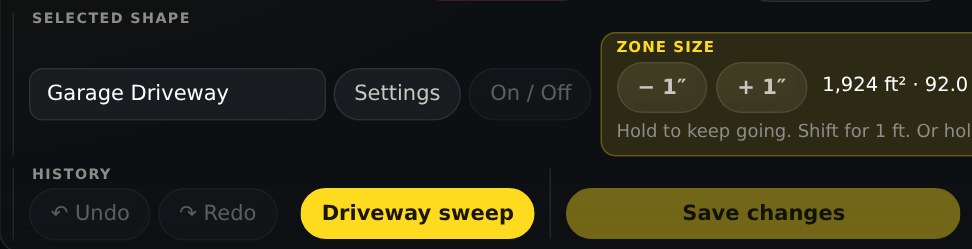
Press Driveway sweep
The button is under Selected shape. Yardstick finds the middle of the driveway and draws the route straight away.
Check the route
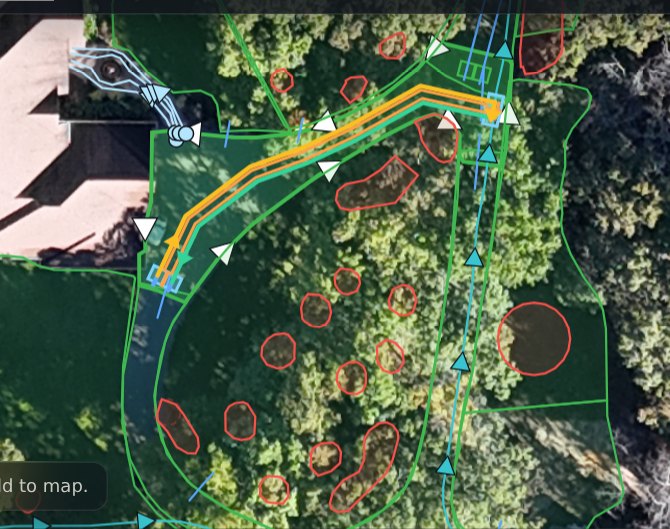
You see four small areas at the corners of the driveway and the pathways that join them: a way in to area 1, up the left side to area 2, across at the road end to area 3, down the right side to area 4, and a way out. The pathways have the leaf blower on. Orange marks the blowing direction, toward the middle of the driveway.
Choose the plan name and speeds
The bar above the map names the plan after your driveway; change it if you like. Pick the Blowing speed and Moving speed, then press Add to map. Cancel leaves everything as it was.

Press Save changes
Nothing reaches the robot until you save. Yardstick backs up your map first, sends the areas and pathways, and then makes the plan once the robot has saved them.

Run it
Attach the leaf blower
The leaf blower only has to be on when the plan runs, not while you draw it.
Start the plan
Open Plans and press Start beside the plan named for your driveway, or start it in the Yarbo app. Before the first run, look at the plan in the Yarbo app to check the route.
Remove it
Open the plan's menu
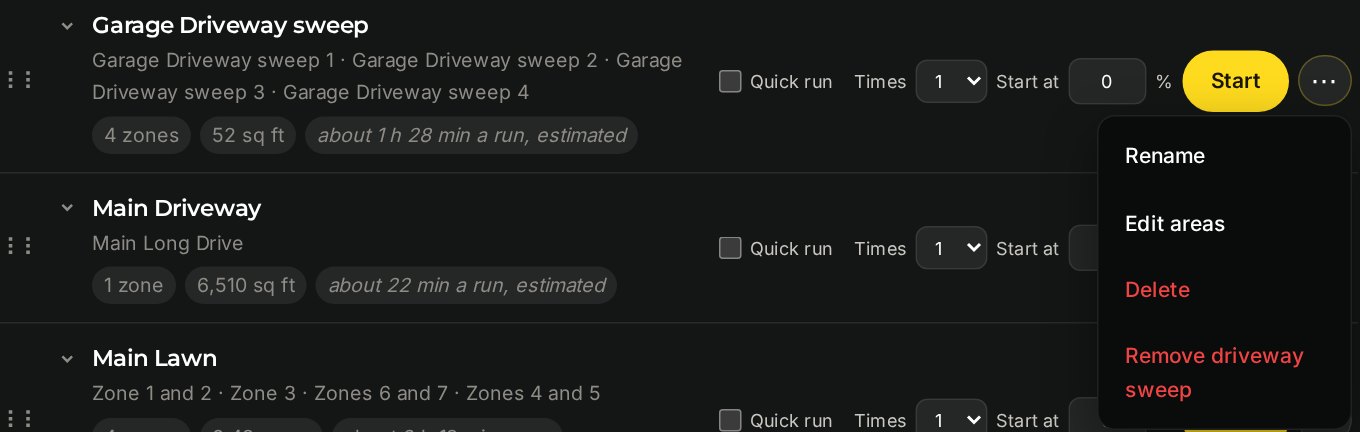
On the Plans page, press ··· beside the driveway sweep plan and choose Remove driveway sweep.
Confirm
Yardstick says what will go: the plan, its four areas and its five pathways. It backs up your map and plans first. Your driveway itself stays exactly as it was. To have the sweep back, draw it again in the map editor.
If it does not work
"Too short for a driveway sweep"
The shape is too small. Driveway sweep is for driveways, not small paved areas.
"Turns more than 60° at one point"
The driveway bends too sharply. Use the leaf blower's normal blowing for that one.
"Could not find a center line"
The shape needs two ends, like a driveway. A round or square area has none.
"The plan was not made"
The areas or their leaf blower settings did not save. Check the map editor for anything still unsaved and press Save changes again, or make the plan on the Plans page.