Support / The map & imagery / Shared borders

Disconnect a shared border between two zones

When two zones share a border, dragging it moves both zones together. Hold one key and you can move one zone's edge on its own: overlap the two so no strip of grass goes uncut between them, pull one zone back from the other, or reshape one zone without disturbing its neighbor.

Where it lives: The Map editor Hold Ctrl while you drag (⌘ Cmd on a Mac) New in Yardstick 1.0.25
The short version In the map editor, select the zone you want to change. Hold Ctrl (Cmd on a Mac) and drag the orange points on its shared border wherever you want them. Only the selected zone moves; the zone next door stays put. Press Save.

Why the orange points move both zones

When two zones share a border, every point along it belongs to both of them. The map editor shows those points in orange.

Dragging an orange point normally moves both zones' borders together. That is deliberate: after you split a zone in two, it keeps the halves meeting exactly, so reshaping the border never opens a gap between them. It also means the two zones can never overlap, and where they meet, the mower can leave a narrow strip of grass along the line.
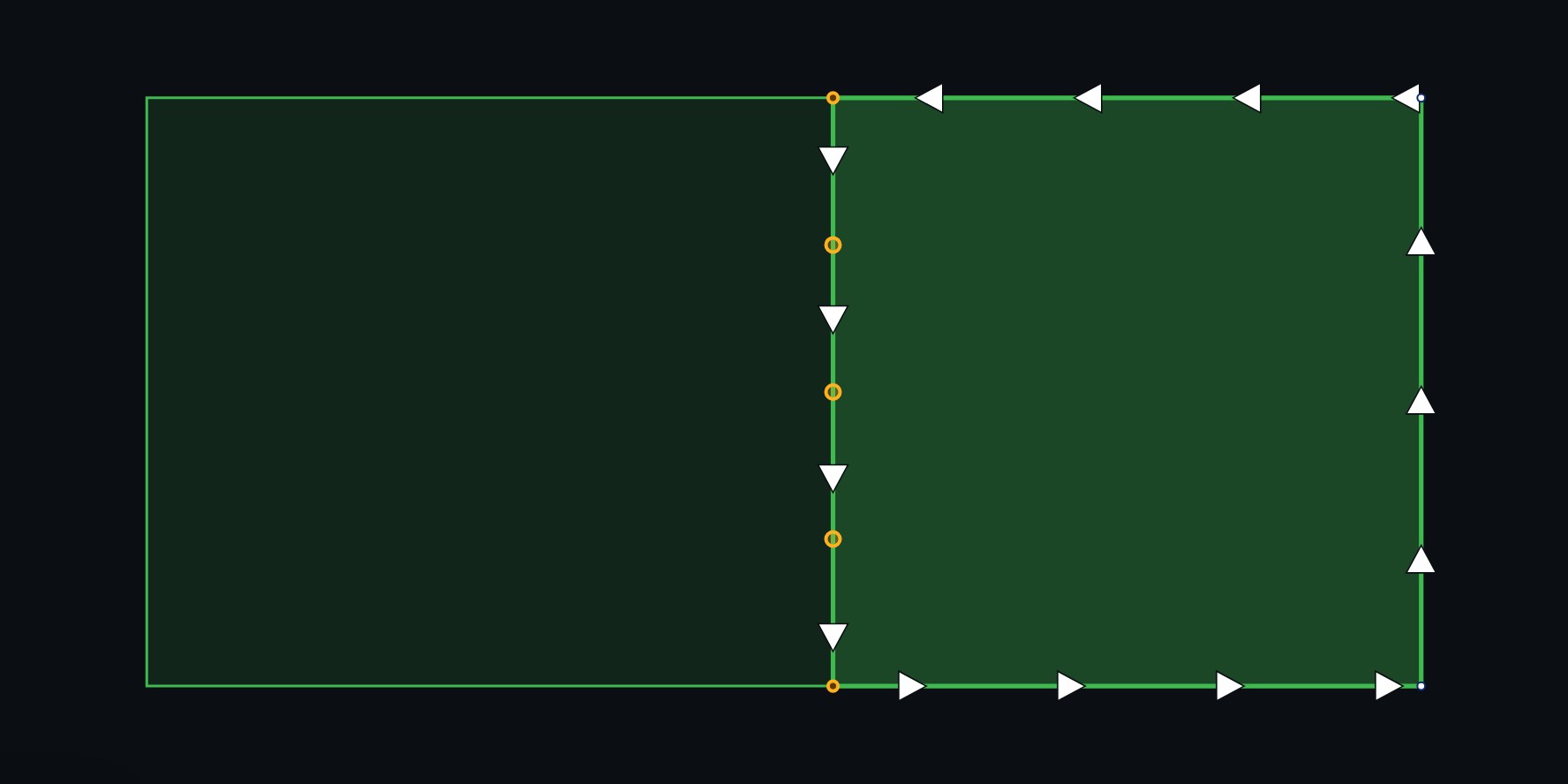
Two zones side by side in the map editor. The selected zone on the right shares its left border with the zone on the left; the points along that border are orange.
A shared border. The selected zone (right) and its neighbor meet exactly. The orange points along the line belong to both zones, so dragging one moves both borders.

Disconnect it

The steps are the same whatever you want the border to do. The pictures show the most common case: overlapping two zones so the mower covers the line between them.

  1. Select the zone you want to change

    Open the map editor and click the zone whose edge you want to move. Its points appear, and the ones on the shared border are orange.

  2. Hold Ctrl and drag the orange points

    Hold Ctrl (⌘ Cmd on a Mac) and drag an orange point where you want it: into the zone next door to overlap them, or back to pull this zone away. Start with the two at the ends of the shared border. Only the selected zone's border moves; its neighbor stays exactly where it was, and the point you moved is no longer shared.

  3. Check it, then Save

    If you are overlapping the zones, a strip where they overlap appears along the border; a foot or so is usually plenty. Press Save to send it to your robot. Until you do, nothing has changed on the robot, and Ctrl+Z takes back any move.

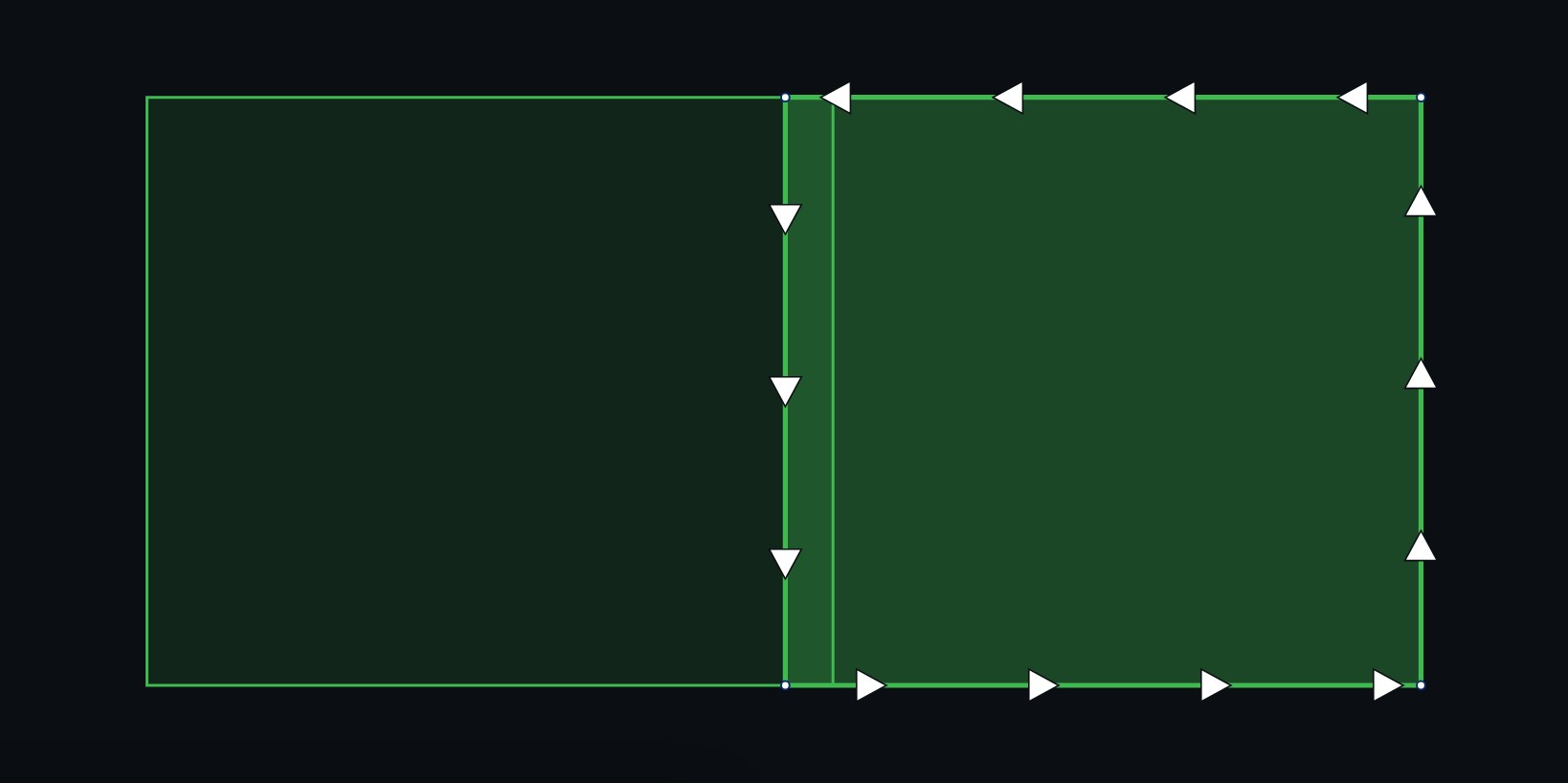
The same two zones after a Ctrl-drag: the right-hand zone's left edge now reaches past the left-hand zone's edge, leaving a narrow overlapping strip between them.
After a Ctrl-drag. The selected zone's edge now reaches about three feet into its neighbor, whose edge has not moved. The narrow band between the two lines is the overlap the mower will cover from both sides.

When you need it

A strip of grass goes uncut between two zones
Overlap them a little: drag the shared border of one zone into the other.
One zone should stop short of the other
Pull one zone's edge back, for example to leave a path or a flower bed between them unmown.
One zone needs reshaping, the other is already right
Move the shared points on the zone you are fixing, and its neighbor keeps its border exactly as it is.

Good to know

Without the key, nothing changes
Dragging an orange point without Ctrl still moves both zones together, as before. The editor reminds you about the key after you do.
The neighbor never moves
With Ctrl held, the zone next door keeps its border exactly as it was. Select that zone instead if it is the one you want to stretch.
Shift and Alt still do what they did
Shift while dragging a point resizes the whole zone, and Alt turns off snapping so you can place a point freely.
Overlap a little, not a lot
The robot mows the overlap from both zones, so a narrow band is all it takes to close the gap. A wide overlap just mows the same grass twice.

Something not behaving? Open a support ticket and send your diagnostics from Settings → Support.

Related

Yardstick is an independent tool for Yarbo robots. Not affiliated with or endorsed by Yarbo Inc. · © 2026 Yardstick Technologies LLC.