Support / Map editor / The settings grid Search help
The settings grid
See every work area, pathway, sidewalk or dead end with its settings side by side, like a spreadsheet: one row for each zone and one column for each setting. Change one zone, copy one zone's settings to the rest, or give them all the same value at once.
Nothing you change in the grid goes to Yarbo until you press Save changes, and Yardstick backs up your map before it sends anything. It works the same in the installed Yardstick and in Yardstick Anywhere.
Open the grid
Press Settings grid
It is on the map editor's toolbar. It also opens from a zone's Settings, and from the actions for several zones you have selected with the lasso, showing only those.
Choose what to see
Show picks the type: work areas, pathways, sidewalks, dead ends, no-go zones, vision zones, patrol lines, throw lines or blowing lines. Module picks whose settings are the columns. It opens on the module attached to Yarbo, and the columns change when you switch.

Read the grid
Each row is a zone and each column a setting. A setting your zones do not all share is marked in its heading, and the note above the grid says how many there are, so differences stand out. A striped cell is a setting that does not apply to that zone with its other settings, the same ones the zone's own settings hide.
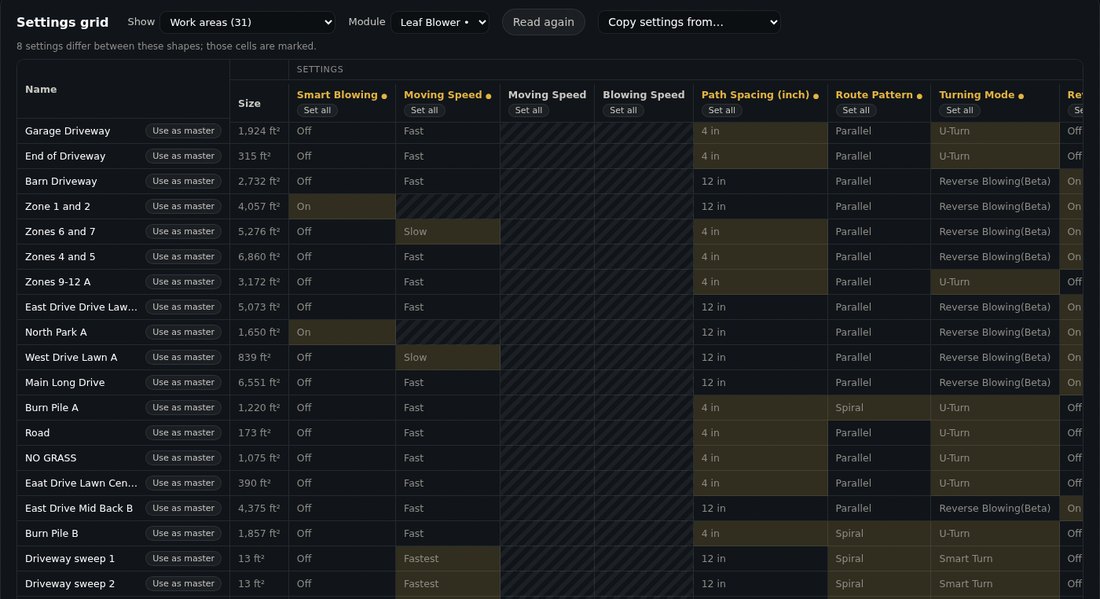
The grid opens at once on each zone's settings as last read from Yarbo, and checks them again in the background. Anything that changed on Yarbo since is marked. Press Read again to read every zone fresh.
Change settings
One zone: click its cell
The cell opens the same control as the zone's own settings. The row is marked changed.
Every zone the same: Set all
Press Set all under a column and choose the value, such as the fastest speed for every work area.
Copy one zone to the others: Use as master
Press Use as master on a row to copy its settings to the other zones: all of them, or only the ones you tick. Copy settings from at the top does the same.
Review and save
Review changes lists everything before it is applied. Then press Save changes in the map editor: Yardstick backs up your map, sends the changes to Yarbo and reads each one back. Undo takes them back until you save.
If it does not work
Cells stay empty for a moment
Those zones have not been read from Yarbo yet. They fill in as Yarbo answers, a few seconds each.
A cell is striped and will not open
That setting does not apply to the zone with its other settings. Change the setting it depends on first; the zone's own settings show which.
A change takes a moment to apply
Yardstick checks each zone against a fresh read from Yarbo before it applies a change, so nothing overwrites a setting changed in the Yarbo app meanwhile. Wait a moment, or press Read again.