Support / Staying informed / Weather

Live weather on the wall display

Yardstick can show the current conditions right on your wall display, read straight from your own WeatherFlow Tempest station. It refreshes about once a minute. There is no cloud service and no Yardstick account in the middle, we just read your station.

Where it lives: Settings → Weather Off until you enter your station details. Clearing the fields turns it back off.
Two things to know first This works with WeatherFlow Tempest stations only. There is no other weather provider. And the readings come directly from your station to your wall display. It is read only, nothing is sent out, and your data stays on your own network.

What it shows

Once it is set up, the wall display shows the live conditions from your Tempest station and keeps them fresh, updating roughly every minute. The values you see:

Temperature
The current air temperature, plus a feels-like reading.
Humidity
The relative humidity in the air right now.
Wind
Average wind speed, the latest gust, and the wind direction.
Pressure
The current barometric pressure at your station.
Sun
UV index and solar radiation.
Rain
How much rain has fallen so far today.
A stale reading means the station is quiet If the newest reading is more than 5 minutes old, Yardstick flags it as stale. That means your Tempest station is offline or asleep, not that Yardstick has stopped. When the station reports again, the flag clears on its own.

Setting it up

You need two things from your Tempest account at tempestwx.com: your Station ID and a personal Access token. Grab both, paste them in, pick your units, and test.

  1. Find your Station ID

    Sign in at tempestwx.com and open your station settings. The Station ID is digits only. You can also read it from the web address, it is the number right after /station/.

  2. Create an Access token

    Go to tempestwx.com/settings/tokens, under Personal Use Tokens, and click Create Token. This makes a personal, read-only token. Copy it, you will paste it in the next step.

  3. Enter both in Yardstick

    Open Settings → Weather and paste the Station ID into its field and the Access token into its field.

  4. Choose your units

    Pick Fahrenheit (shows F, mph, inches) or Celsius (shows C, km/h, mm). This only changes how the numbers are displayed.

  5. Test, then Save

    Press Test station to confirm Yardstick can reach your station and pull a reading. When it works, press Save. The conditions appear on the wall display shortly after.
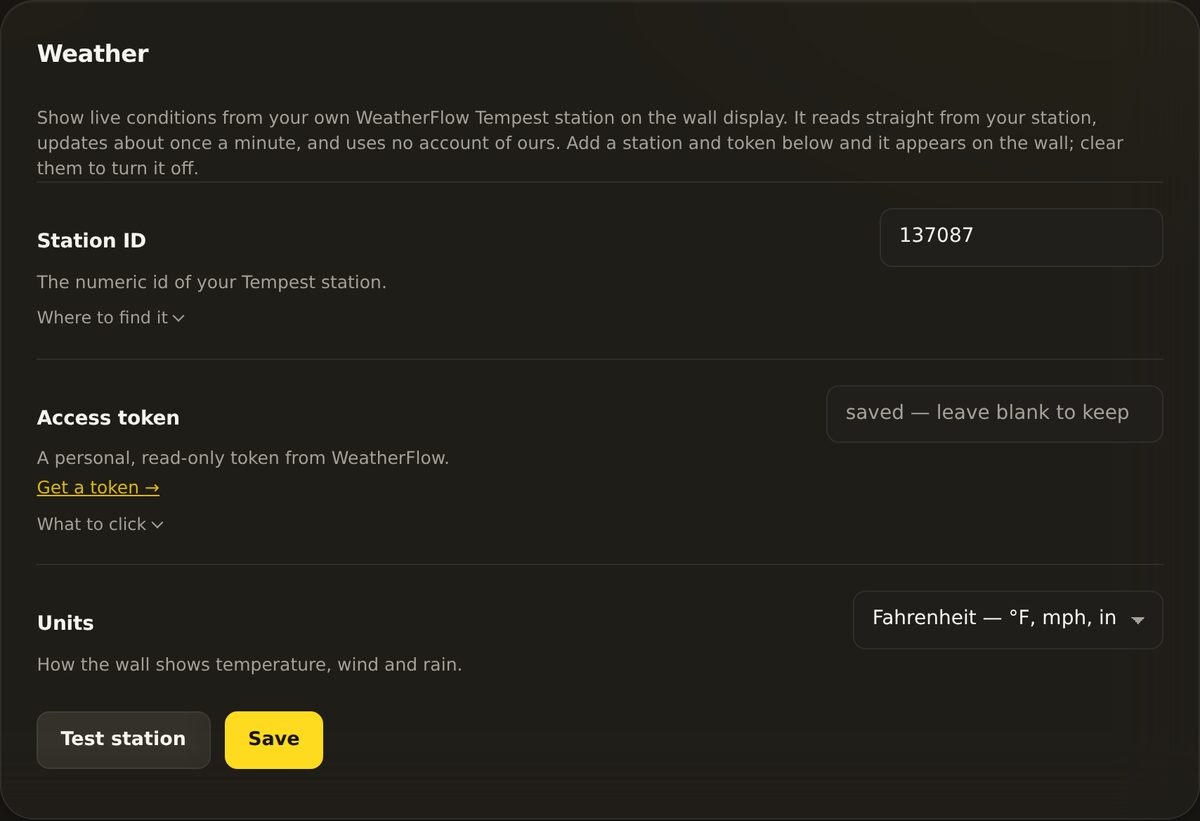
The Weather settings panel with a Station ID field, an Access token field, a Units choice of Fahrenheit or Celsius, and Test station and Save buttons.
Settings → Weather. Enter your Station ID and Access token, pick units, then use Test station and Save. Clearing both fields turns weather off.

Good to know

Your token is read only The Personal Use Token you create can only read from your station, it cannot change anything. Yardstick uses it to fetch conditions and nothing else, and the readings stay on your own network.
Which weather stations work?

Only WeatherFlow Tempest stations. There is no other supported provider. If you do not have a Tempest station, this feature will not show anything.

How do I turn weather off?

Clear the Station ID and Access token fields and Save. With the fields empty, weather is off and nothing shows on the wall display.

The conditions say "stale". What does that mean?

The newest reading is more than 5 minutes old, which means your Tempest station is offline or asleep. Check that the station has power and is connected. Once it reports again, the stale flag clears by itself.

Does this send my data to Yardstick?

No. There is no Yardstick account involved. Yardstick reads your station directly with your own read-only token, and the readings stay on your network.

Set it up and still not seeing conditions? Open a support ticket and tell us what Test station said. Because Yardstick reads your Tempest station directly, the answer is usually in the Station ID or the token.

Related

Yardstick is an independent tool for Yarbo robots. Not affiliated with or endorsed by Yarbo Inc. · © 2026 Yardstick Technologies LLC.