Where it lives
Open Scheduler from the links at the top of any page. Everything Yarbo does on its own is on that one page.
Making a program
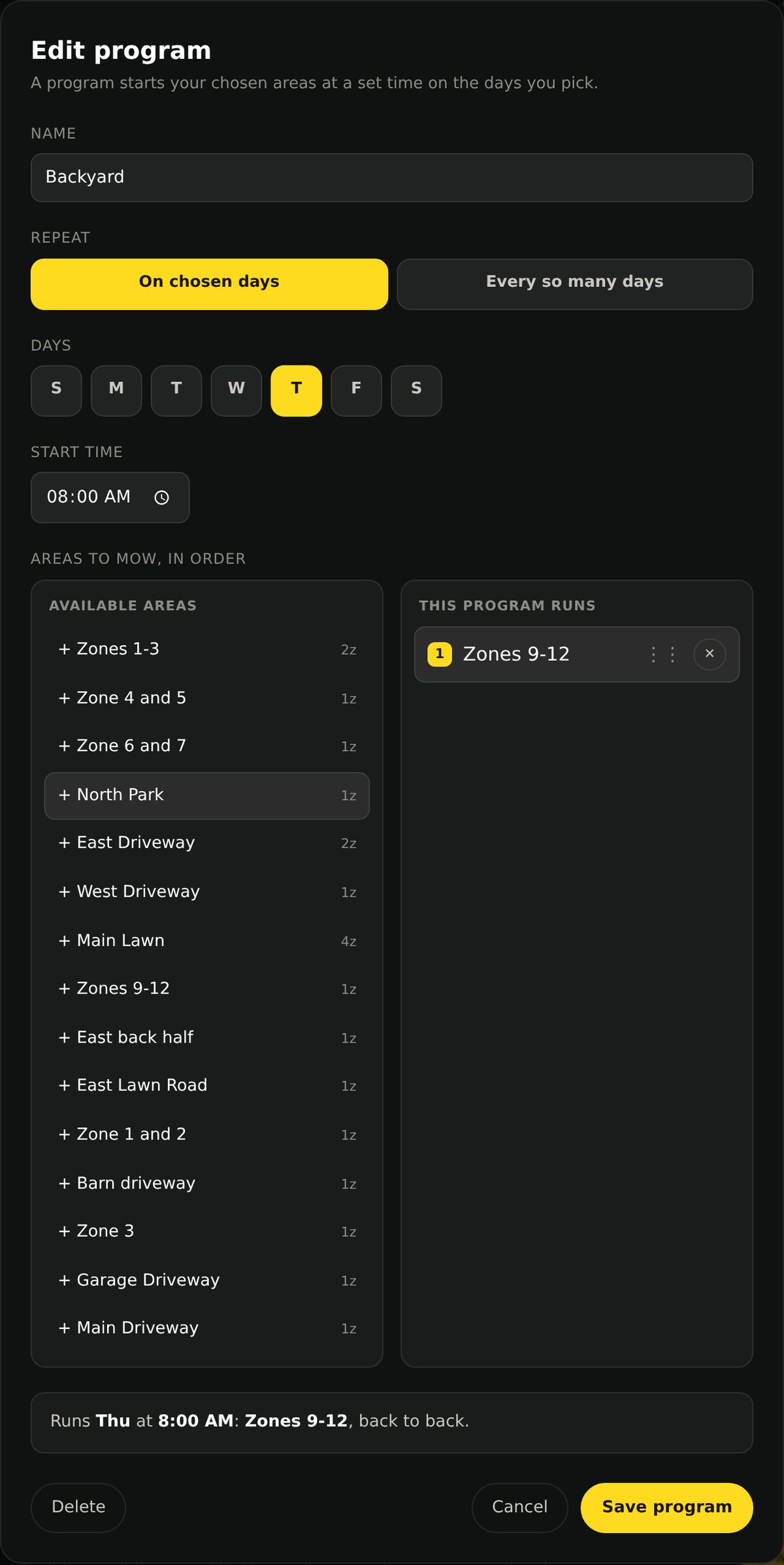
Name it
Whatever you will recognize later. Weekday mornings, Back field.
Choose how it repeats
Either on chosen days of the week, or every so many days if you would rather it came round on a cycle than on a calendar.
Set the start time
When it sets off. One start time per program.
Pick the areas, in order
Choose from the list on the left and drag to reorder. Yarbo does them one after another, returning to the dock in between if it needs to charge.
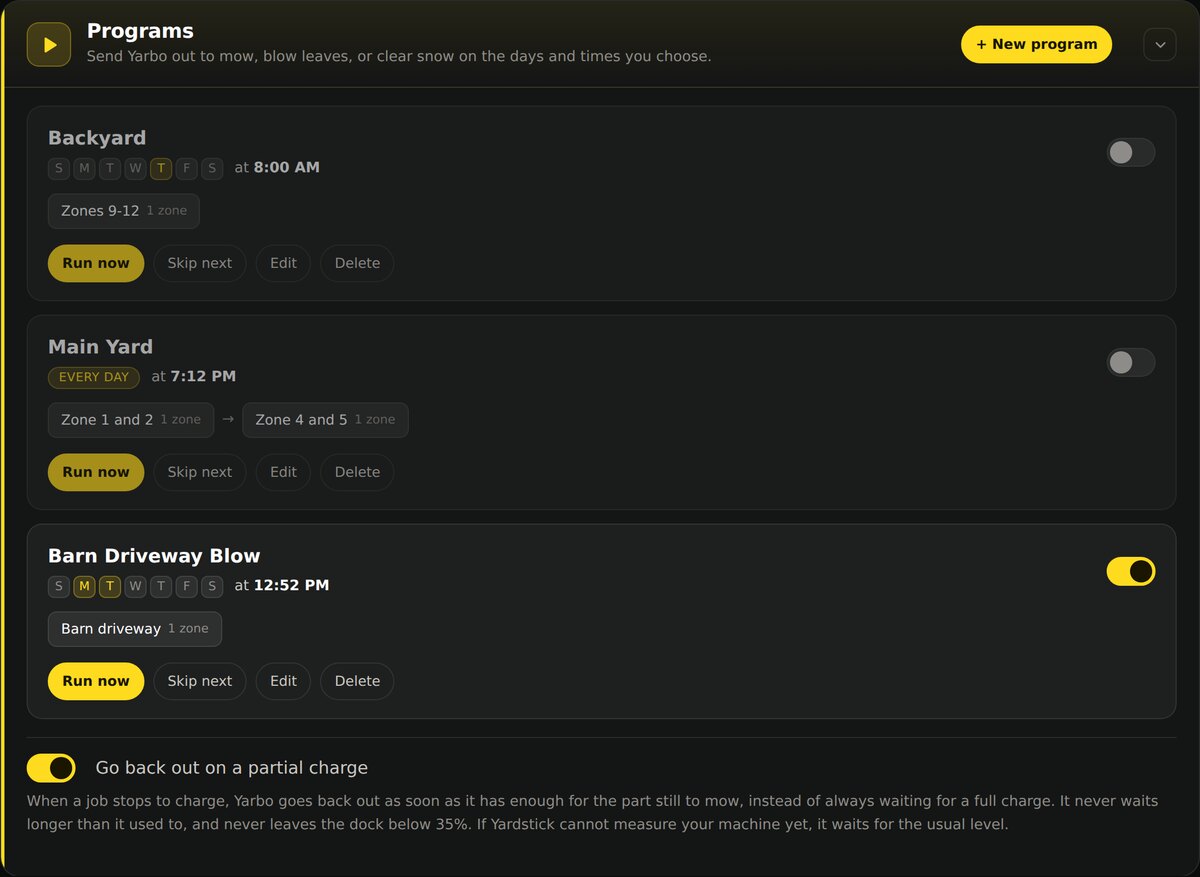
Run now, skip next
Run now
Starts the program immediately, whatever the schedule says. For when the grass got away from you.
Skip next
Misses the next occurrence only. Rain forecast on Tuesday, back to normal after.
The switch
Turns a program off indefinitely without deleting it.
Seeing what is coming
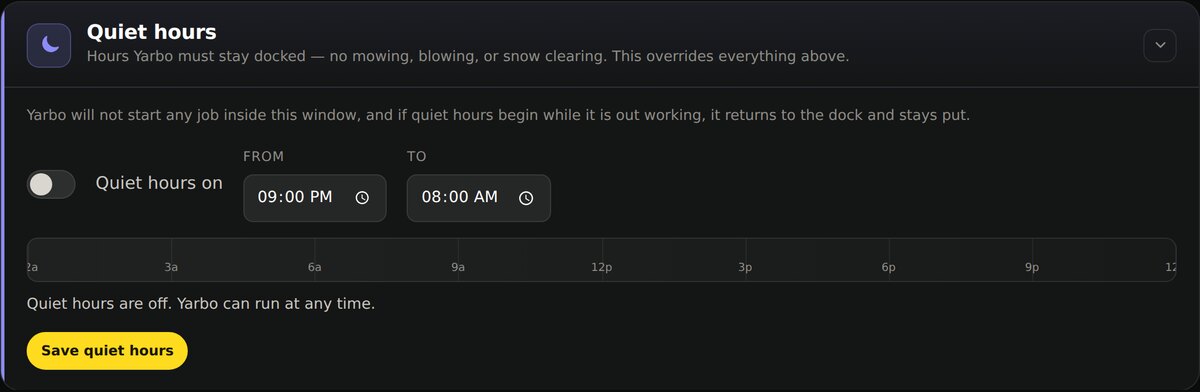
Quiet hours
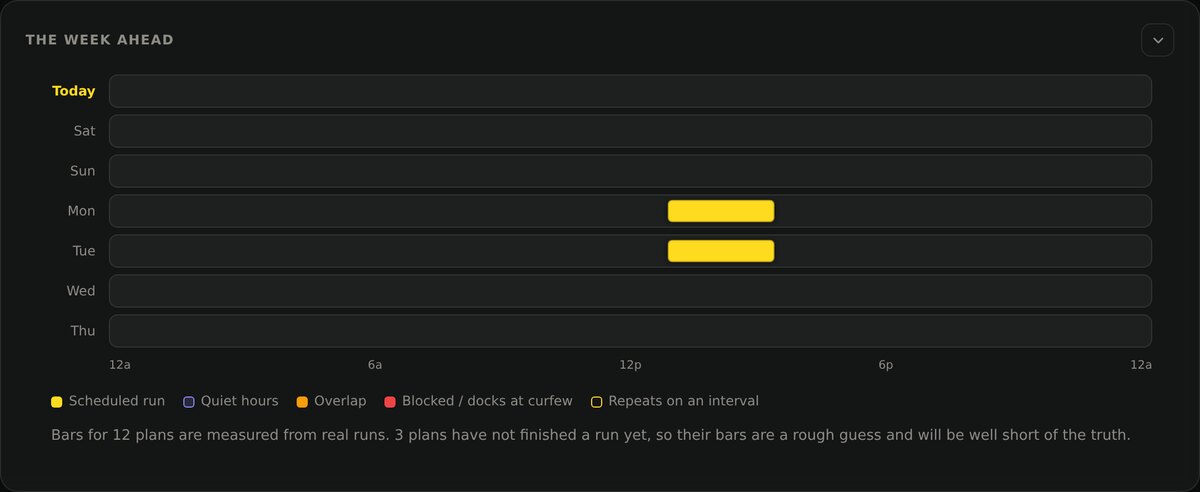
Quiet hours override everything else on the page. Yarbo will not start a job inside the window, and if the window begins while it is out working it returns to the dock and stays there.
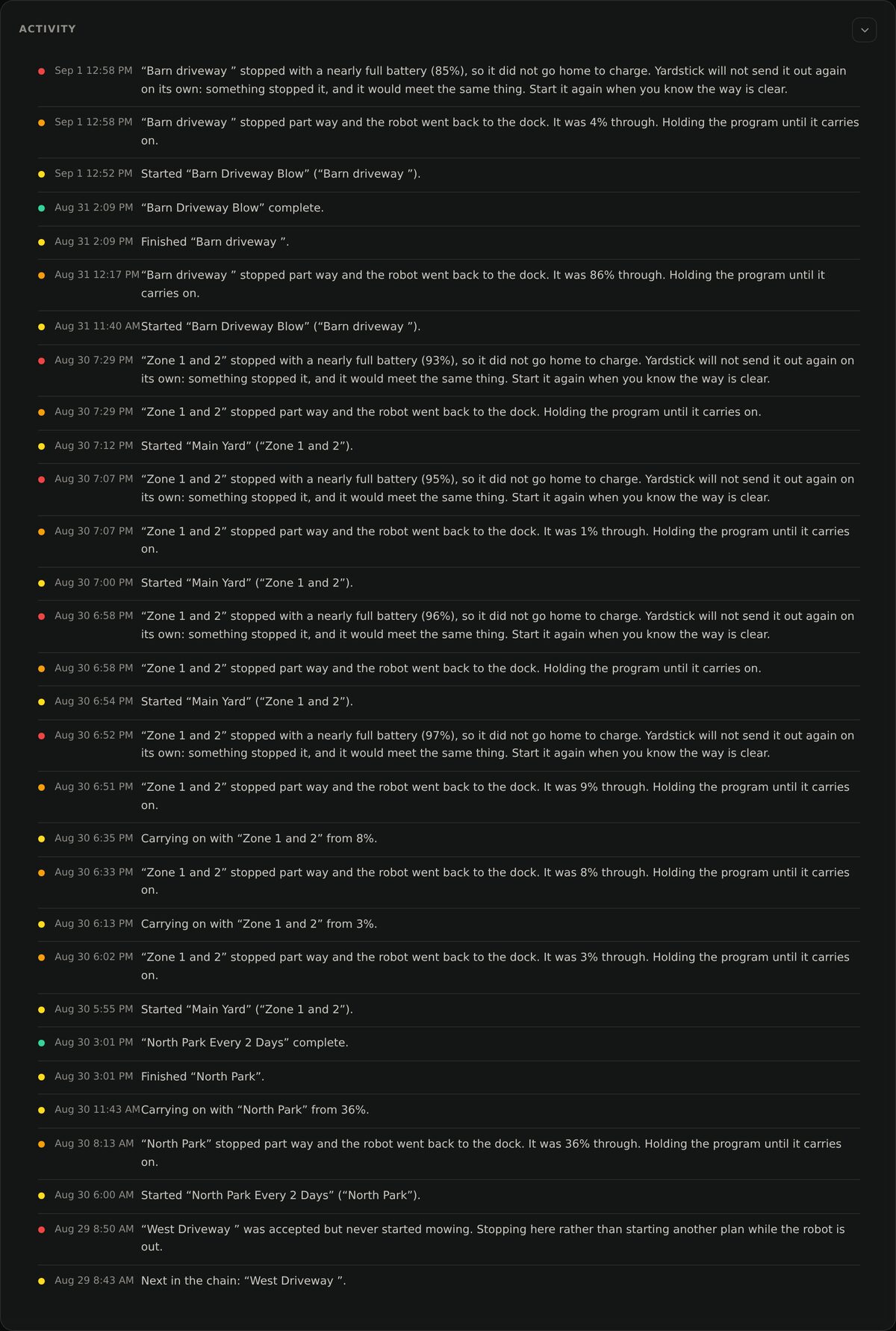
When something did not run
Before you rely on it
It needs the computer on
Schedules run only while Yardstick is running, and a power cut or network drop can stop one firing. Do not treat scheduling as a safety feature. Yarbo’s own safety systems always take priority.
Only one scheduler at a time
If you schedule here, turn the Yarbo app’s own schedules off, or the two will argue. The page tells you which state you are in.
Deleted areas switch a program off
If a work area a program depends on is deleted from your map, Yardstick turns that program off and names the missing piece, rather than letting it come due and quietly do less than it says.
Charging is handled
A job that stops to charge goes back out on a partial charge as soon as it has enough for the rest, instead of waiting for a full battery.