Support / Automatic mowing / Plans Search help
Plans: build, start and keep them safe
A plan is a named set of zones, and any dead ends, that Yarbo mows in one go. Plans are stored on the robot itself. From Yardstick you can build and change them, start one, and keep a copy in case the robot loses them.
Where it lives
Open Plans from the links at the top of any page. Building, renaming and deleting plans uses your Yarbo account; if you are not signed in, the page offers Sign in to edit plans.
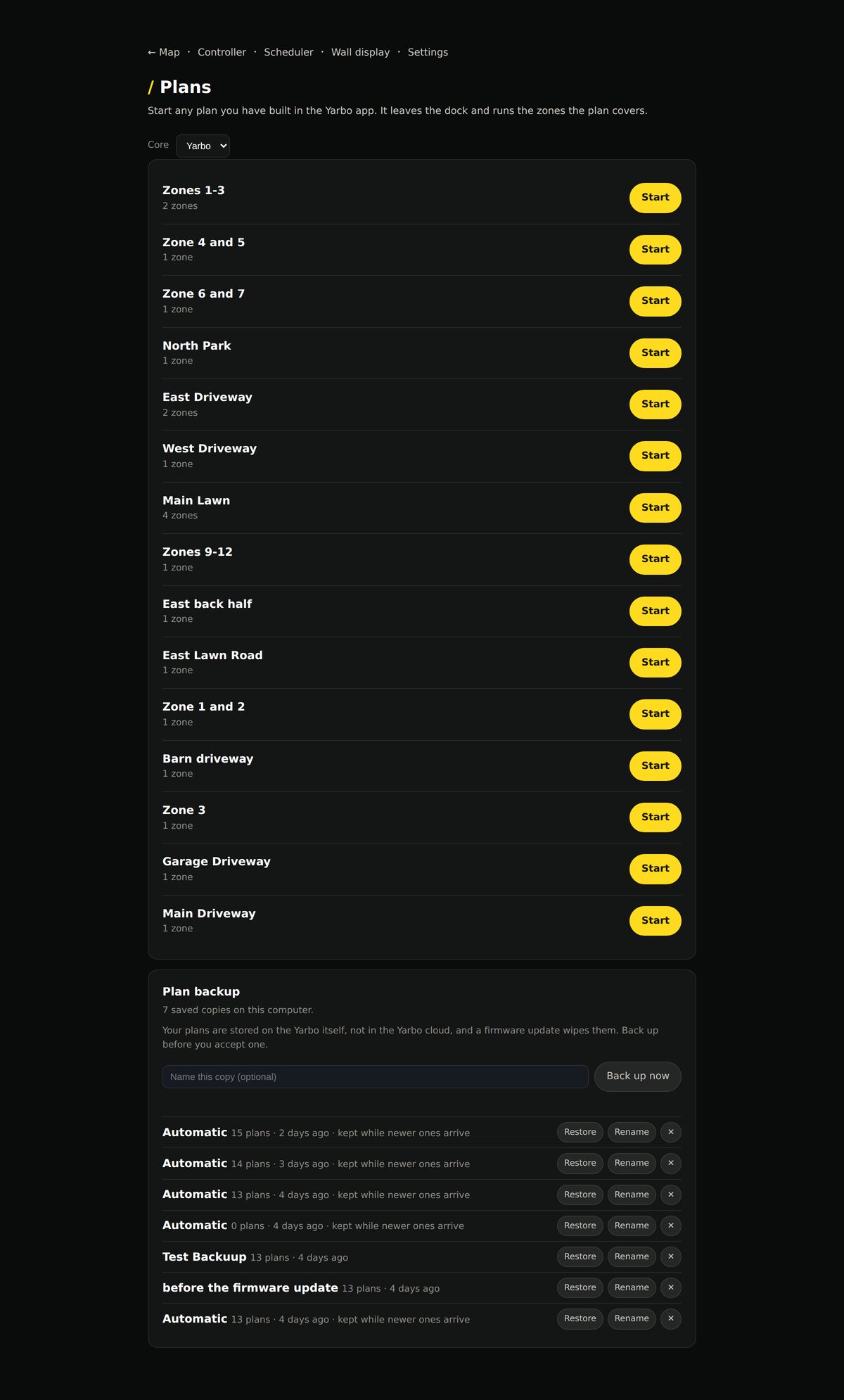
Your plans
Start
Sends Yarbo off the dock to mow that plan now.
New plan
Name it, tick the zones it should mow, and press Create plan.
Edit areas
Open the plan’s ⋯ menu (More for {name}), then choose Edit areas. Change which zones a plan mows. Your dead ends are listed in their own group, Dead ends this plan mows, each named with the zone it comes off. Press Save changes when done. Under each plan’s name you can see what it covers, for example 1 zone, 1 dead end.
Choose the order
With Smart sorting on, Yarbo picks the order of the plan’s areas itself. Turn it off in Edit areas and the zones and dead ends are listed in the order Yarbo will mow them; use the arrows to change it, then Save changes. Handy for dead ends on a hill that only work one way. It is the same switch as in the Yarbo app, and a plan keeps its order whichever app you edit it in.
Rename
Open the plan’s ⋯ menu and choose Rename. Gives the plan a new name. The name is what you see here, in the Scheduler and in the Yarbo app.
Put them in order
The arrows beside each plan move it up or down the list. Sort A to Z puts them back in alphabetical order.
Delete
Open the plan’s ⋯ menu and choose Delete. Removes the plan from the robot. If a program in the Scheduler runs it, Yardstick says which one first and asks you to confirm with Delete anyway.
While a plan is running
A card at the top shows the job: how much is covered, the time left and the battery. From there:
Pause, and Resume
Pause stops the robot where it is; Resume carries on. Pause & go home sends it to the dock with the job still open, to carry on later.
End job
Finishes the job where the robot is. It can’t be resumed afterwards. End job & go home ends it and sends the robot to the dock. If the job was part of a Scheduler program, the rest of that program is canceled too, along with anything waiting to start; they run again at their next scheduled time.
Plan backup
Click Plan backup to open the folded section. It shows the latest three copies; choose Show all followed by the number of backups to see older ones.
Back up now
Saves a copy of every plan on your computer. Give it a name if you like. Yardstick also keeps Automatic copies as it goes, including when the robot reports no plans at all, because that is exactly the moment worth noticing.
Restore
Puts missing plans back on the robot from a copy. Plans still on the robot are left alone, and restored plans keep their old numbers, which is what your schedules point at.
Rename and ×
Name a copy so you can find it, or delete one you no longer need.
How plans and schedules fit together
A program in the Scheduler runs one or more plans in order. Within one plan, the order is set by Smart sorting, above. Deleting a zone, dead end or patrol line in the map editor keeps the plans that use it: they stay intact with everything else in them. If a plan a program runs is deleted, the program is switched off and Yardstick tells you which piece is missing.