Support / Getting started / First run
Four small steps take you from a fresh install to a real map of your yard. You set it up once and then leave it alone. Yardstick runs quietly on your own computer and captures every job the robot does. Your recordings stay on that computer; there is no Yardstick account to create.
Here is the path from nothing to a finished map. Each stage is covered in detail below.
Put Yardstick on a computer that stays on.
Sign in with your Yarbo account and your robots appear.
Keep automatic recording on and let the next job capture itself.
Open the page and watch your yard fill in.
Yardstick records the robot as it works, so it needs to be running when the robot is. Put it on a computer that stays on and has an internet connection. It does not need to be on the same network as the robot.
A mini-PC, a spare laptop, or a Raspberry Pi all work well. Yardstick runs as a small background service and starts with the computer, so once it is installed you do not have to launch anything. Leave the machine on and it keeps watch on its own.
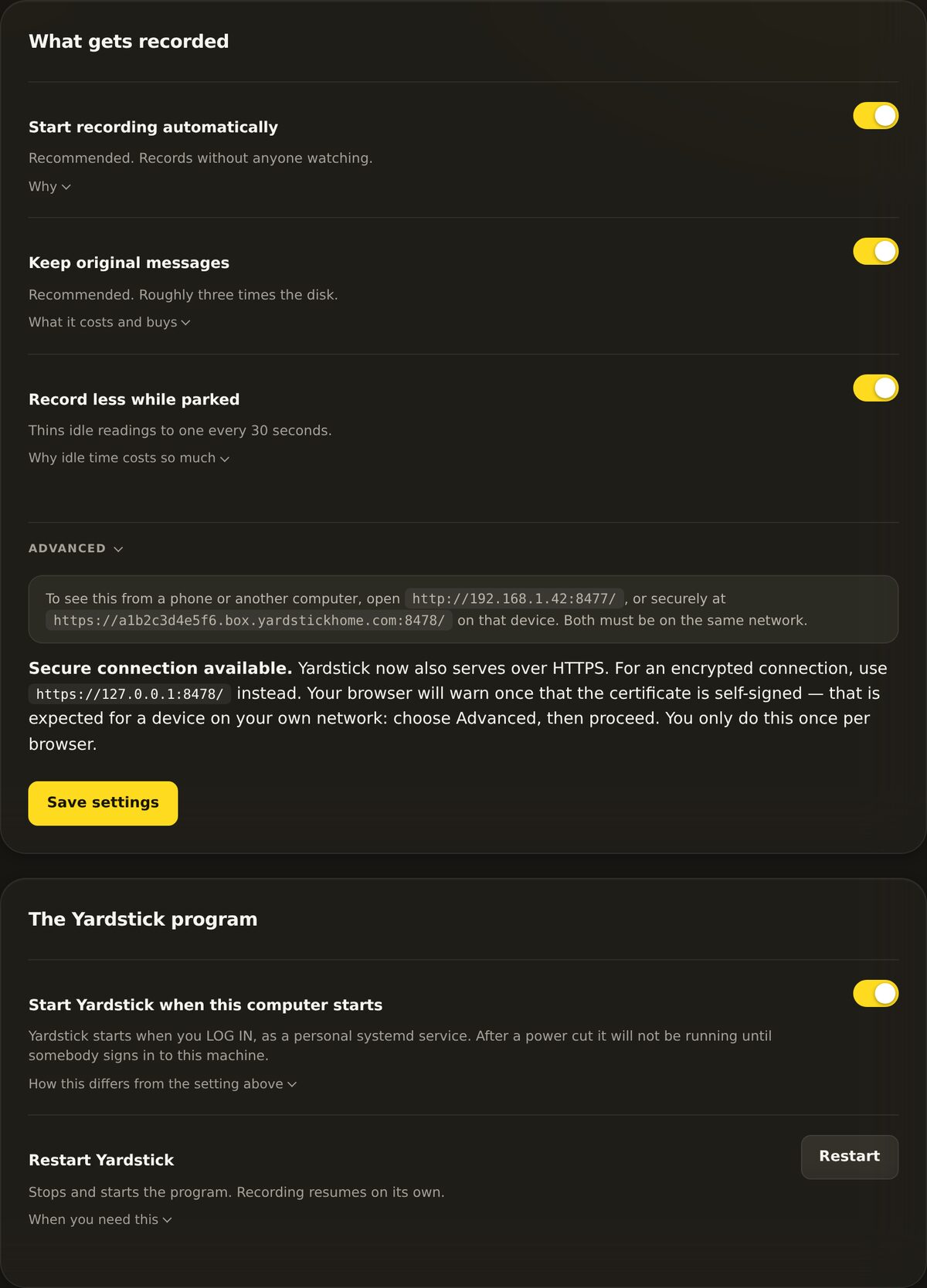
http://<computer-ip>:8477/ on the same network. The exact address is shown at the bottom of the Settings page, so you never have to guess it.Your robots come from your Yarbo account, so there is nothing to look up and no address to type. Sign in once and they appear.
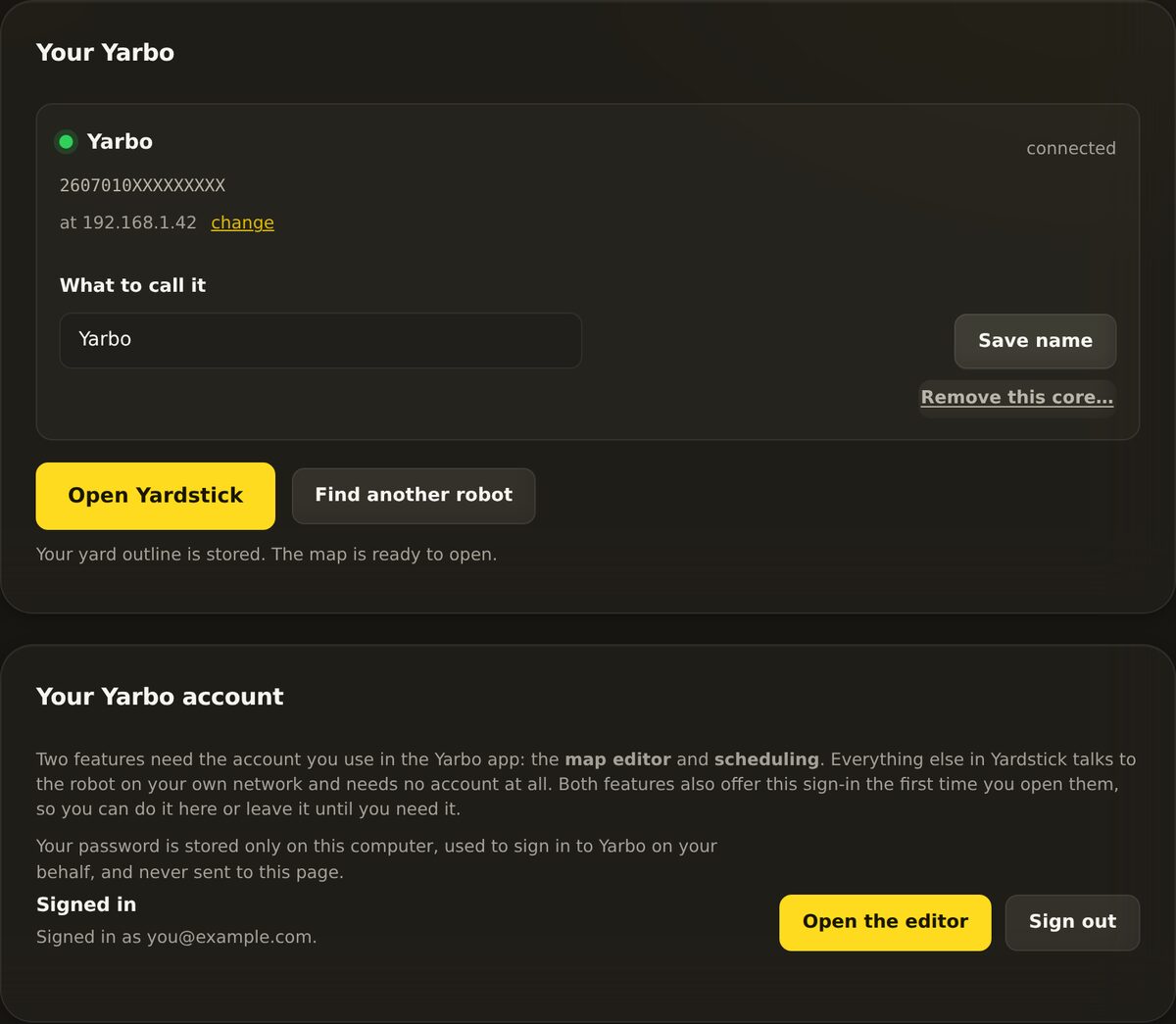
In the browser, go to Settings → Your Yarbo.
Fill in Yarbo account email and Yarbo account password and press Sign in. Your password is stored only on this computer, used to sign in to Yarbo on your behalf, and never sent to us.
Every machine on the account shows up, named as you named it. If you add one later in the Yarbo app, press Check my Yarbo account and it joins the list.
This is the step that does the work, and it is almost nothing. You just make sure recording is on and then go about your day.
Go to Settings → Recording.
Leave Start recording automatically switched on. The next time the robot works, Yardstick captures the job and builds the map for you. There is nothing to press when a job starts.
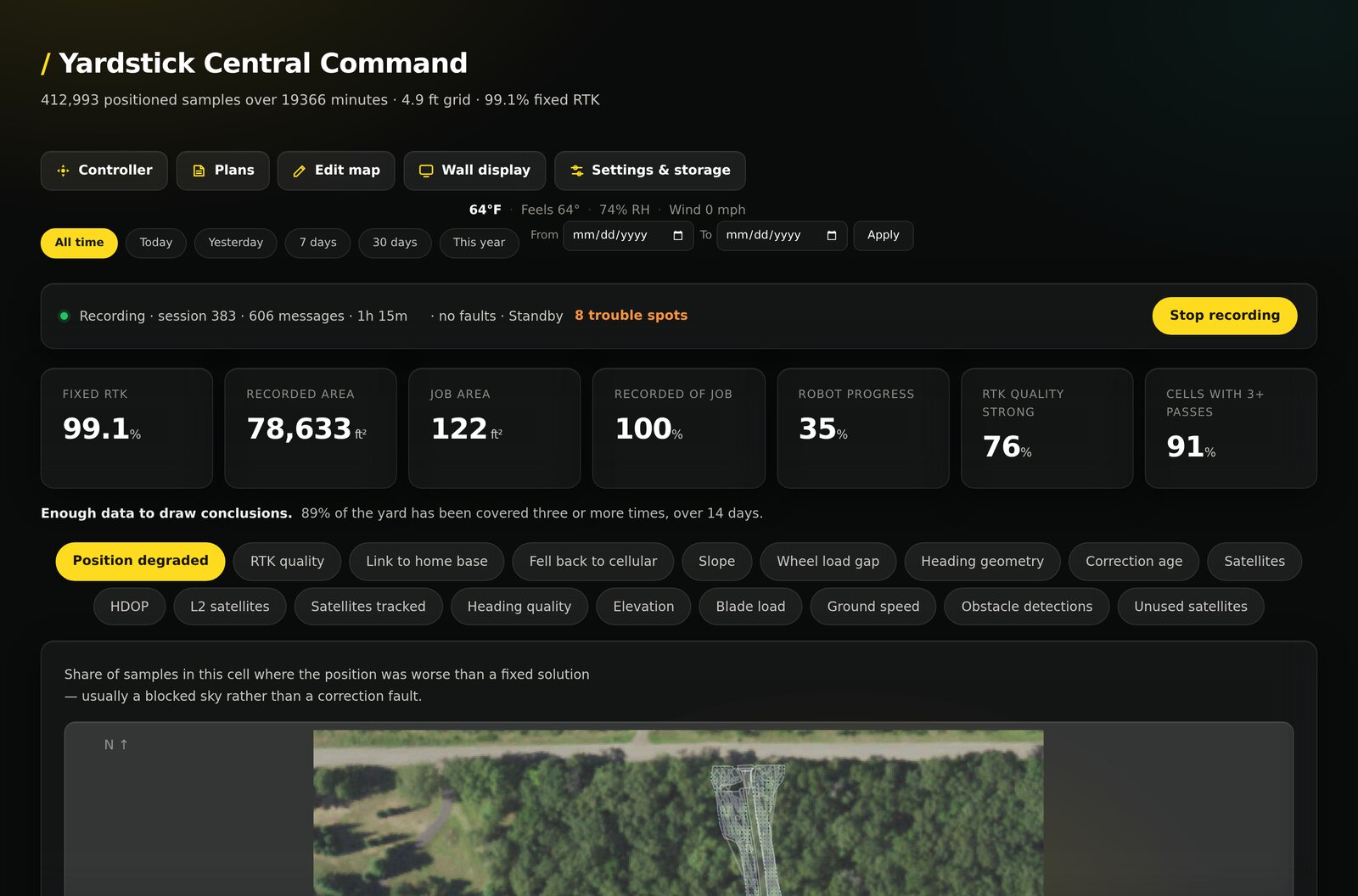
Once a job or two is in, open Yardstick and your yard is there: summary tiles up top and a coverage map of everywhere the robot went.
From here you can dig into a single job, read the coverage colors, or turn on the aerial photo underneath. The related guides below pick up where this leaves off.
Alongside the plain address, Yardstick offers a secure one at https://<computer-ip>:8478/. You do not have to use it, but if you prefer the padlock it is there.
Stuck on any step? Open a support ticket and tell us what the panel says. Because Yardstick runs on your own machine, we can usually point you to the exact setting.