Yardstick watches your robot for you and speaks up only when something needs a hand. You choose which problems matter and where the message goes, whether that is a banner on the page, a phone push, or your own email.
Where it lives:Settings → AlertsSettings → NotificationsOne panel picks the problems, the other picks where the news lands.
The short version
Alerts fire only when the robot is actually in trouble, not for normal activity. You keep a master switch, you can turn each rule on or off on its own, and you decide which channels carry the message. Nothing routes through Yardstick's servers.
Alerts only fire on real problems
Yardstick does not chatter at you. It stays quiet while the robot mows, charges, or sits happily on the dock. A message only goes out when something is genuinely stuck, lost, faulted, or stranded, the kind of thing you would want to walk outside and check.
The whole system rides on one master switch, Watch for problems and tell me. Turn that off and the robot works in silence. Leave it on, and every rule below that you have enabled is armed.
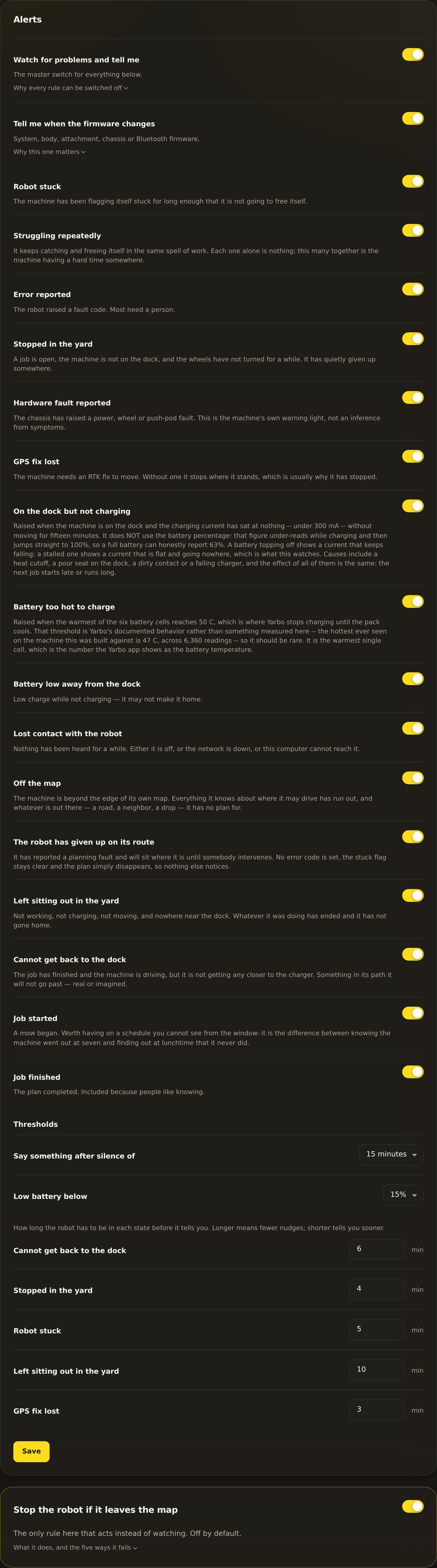
Settings → Alerts. The master switch sits at the top. Below it, each rule has its own toggle, and two dropdowns set the thresholds.
Two numbers you can tune
Most rules just work, but two of them lean on a number you get to set:
Say something after silence ofDEFAULT 15 MIN
How long the robot can go without sending a message before Yardstick treats it as lost contact. Choose 5, 15, 30, or 60 minutes.
Low battery belowDEFAULT 15%
The charge level that counts as low when the robot is away from the dock and not charging. Choose 10, 15, 20, or 25 percent.
The alerts you can turn on
Each row is one rule. Turn on the ones you care about and leave the rest off. The colored tag shows how serious Yardstick considers it.
Robot stuckCRITICAL
The robot has been stuck in one place for 5 minutes.
Struggling repeatedlyINFO
The robot keeps catching and freeing itself over and over in a single work session.
Error reportedCRITICAL
The robot raised a fault code.
Stopped in the yardCRITICAL
A job is open and the robot is off the dock, but the wheels have been still for about 4 minutes.
Hardware fault reportedCRITICAL
A power, wheel, or push-pod fault.
GPS fix lostWARNING
No fixed RTK position for 3 minutes.
Battery low away from the dockWARNING
Low charge while off the dock and not charging. You set the level above.
Lost contact with the robotWARNING
No messages for the silence threshold you chose above.
Off the mapCRITICAL
The robot went beyond the mapped edge of your property.
The robot has given up on its routeCRITICAL
A planning fault. The robot cannot work out how to continue.
Left sitting out in the yardCRITICAL
Idle, off the dock, and not charging for 10 minutes.
Cannot get back to the dockWARNING
The job is done and the robot is driving, but it is not making progress home.
Job startedINFO · OFF BY DEFAULT
A mow began. Names the program that started it when Yardstick did. Off until you switch it on.
Job finishedINFO · OFF BY DEFAULT
A plan completed successfully. This one is off until you switch it on.
The two job messages start off
Most people want to hear about trouble, not routine success, so Job started and Job finished both ship turned off. Turn either on and point it at whichever channel you prefer. Job started earns its place on a schedule you cannot see from the window: it is the difference between knowing the machine went out at seven, and finding out at lunchtime that it never did. When Yardstick's own scheduler starts the job, the message names the program; when the mow is started from the Yarbo app instead, it simply says a job has started, because there is no program to name.
Where your alerts go
The Settings → Notifications panel picks the delivery channels. Each one is independent and optional, so turn on as many or as few as you like. The same alert can land in several places at once.
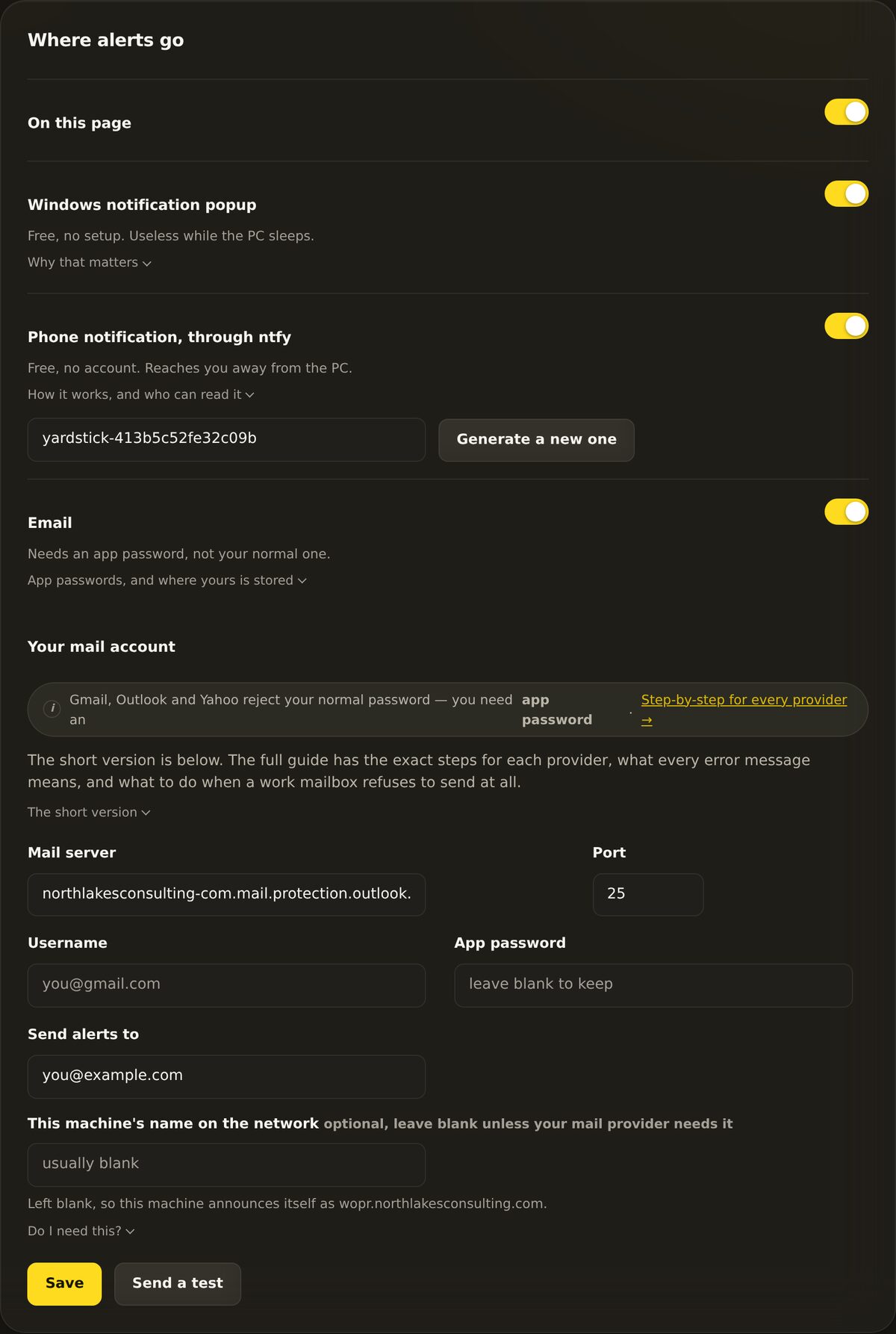
Settings → Notifications. Four separate channels. Switch on the ones that fit how you keep an eye on things.
On this page
A banner right on the Yardstick page itself. To turn it on: flip the on-page toggle. Good if you keep the page open on a wall display or a spare screen.
Windows notification popup
A standard Windows toast in the corner of your screen. To turn it on: flip the Windows popup toggle. Windows only, and best effort, so it is useless while the PC is asleep.
Phone, through ntfy
A push to your phone using ntfy, which is free and needs no account. To turn it on: set a topic name (it starts with yardstick-), then install the free ntfy app on your phone and subscribe to that same topic.
Do not type the topic in by hand. A topic looks like yardstick-413b5c52fe32c09b, and one wrong character subscribes you to a topic nobody sends to. Nothing warns you, because from the app’s point of view a topic with no messages and a topic that does not exist look identical. Press Show QR code next to the topic and point your phone camera at it instead. The code is drawn on your own computer, so your topic is never sent anywhere to be turned into a picture.
Email
A message to yourself, sent through your own email account. To turn it on: enter your email server details and use Send a test to confirm it works. Nothing routes through Yardstick's servers.
Android, iPhone, a watch, a speaker: through Home Assistant
The four channels above are the ones in the Notifications panel. There is a fifth route that lives somewhere else and is worth knowing about, because it reaches things the others cannot.
If you already run Home Assistant, Yardstick can publish your robot into it as ordinary sensors. Once it is there, you write the notification in Home Assistant rather than in Yardstick, which means it can go anywhere Home Assistant can already send: the companion app on Android or iPhone, a watch, a speaker that announces it out loud, a light that changes color, or all of them at once. You also get to decide the wording and the conditions yourself.
This is the answer if you are on Android and would rather not add another app, or if you want an alert to do something more interesting than appear on a screen. Setting it up is on the Home Assistant page, with a worked example you can paste in.
It is not a replacement for the four above. It needs Home Assistant already running, and if you do not have that, ntfy is far less work.
Keep your ntfy topic private
Anyone who knows your topic name can read your alerts. Treat it like a password: do not post it anywhere. If you think it has leaked, press Generate a new one for a fresh random topic, then resubscribe on your phone.
Email goes through your own account
Yardstick sends email from your address to your address, so you need your own outgoing mail (SMTP) details. Gmail, Outlook, and Yahoo require an app password, not your normal login password. The exact settings and how to make an app password are in the deeper guide, setting up email alerts.
The one rule that acts: Stop the robot if it leaves the map
Every rule above only watches and tells you. This one is different. Stop the robot if it leaves the map is the single rule that does something to the robot itself, and it ships off by default.
When it is on and the robot travels about 5 feet past its mapped edge, Yardstick sends a stop command. The robot then sits where it is until you go restart it. Think of it as a last-resort backstop for the rare case where everything else has failed, not as a boundary you can count on.
Read this honestly before you rely on it. This is not a geofence.
It is a best-effort stop, and it can be late or it can miss:
It checks the robot's position only about every 20 seconds, so at speed it can be roughly 10 meters late.
It works only when the robot has a fixed RTK position. No fixed position, no check.
The stop is a network message. Like any message, it can fail to arrive.
It does nothing while the computer is asleep.
It has never been tested against a real machine in the runaway situation it exists for.
Do not use it in place of care, supervision, or a real physical boundary. It is a backstop, not a fence.
Common questions
Will I get pestered with alerts all day?
No. Alerts fire only when the robot needs a hand, like being stuck, faulted, lost, or stranded. Normal mowing, charging, and docking never trigger anything. If you want even fewer, turn off individual rules you do not care about.
Do I have to pick just one delivery channel?
No. The four channels are independent. You can send the same alert to the on-page banner, a Windows popup, your phone, and your email all at once, or use only one. Turn on whatever fits how you watch your yard.
Why does email need an app password?
Because Yardstick signs in to your own mail account to send the message, and Gmail, Outlook, and Yahoo block your normal password for that. An app password is a special one you generate just for this. The full walkthrough is in setting up email alerts.
Can the "Stop the robot" rule truly keep the robot in the yard?
Treat it as a last resort, not a guarantee. It checks position only about every 20 seconds, needs a fixed RTK position, relies on a network message that can fail, and does nothing while the PC sleeps. It has never been exercised against a real machine in the situation it is for. Keep it off unless you understand those limits, and never treat it as a fence.
Not seeing an alert you expected, or getting one you cannot explain? Open a support ticket and tell us which rule and which channel. Because Yardstick runs on your own machine, we can usually point you to the exact setting.