What you get
One device per robot, with six entities. Every one is read-only.
sensor.<robot>_battery
Battery. Charge level, as a percentage. Carries the battery device class, so Home Assistant shows the right icon and color.
binary_sensor.<robot>_online
Online. Whether Yardstick is hearing from the robot. If Yardstick itself stops, Home Assistant marks every entity unavailable on its own rather than showing stale numbers.
binary_sensor.<robot>_charging
Charging. On while the robot is on the dock taking charge.
sensor.<robot>_activity
Activity. What it is doing right now, in words.
sensor.<robot>_rtk_signal
RTK signal. Positioning quality. Useful for spotting a yard that has lost its fix.
sensor.<robot>_fault_code
Fault code. The number the machine last reported. See the error codes page for what to do with it.
How it connects
Home Assistant talks to Yardstick, and Yardstick talks to your robot. The first hop is on your own network. The second goes through your Yarbo account, the same way the Yarbo app reaches the robot, so the sensors are as current as Yardstick's own page and need the same internet connection Yardstick does.
An integration, installed through HACS
The Yardstick integration comes from HACS, the community store for Home Assistant. There is no MQTT broker to run and nothing to add to configuration.yaml.
Found automatically
Yardstick announces itself on your network, so Home Assistant shows "Yardstick discovered" the way it does for a smart bulb. If your network blocks that, you add it by hand with the address Yardstick shows you.
One device per robot
Each robot on your Yarbo account appears as its own device, named as you named it, with the six entities under it.
Turning it on
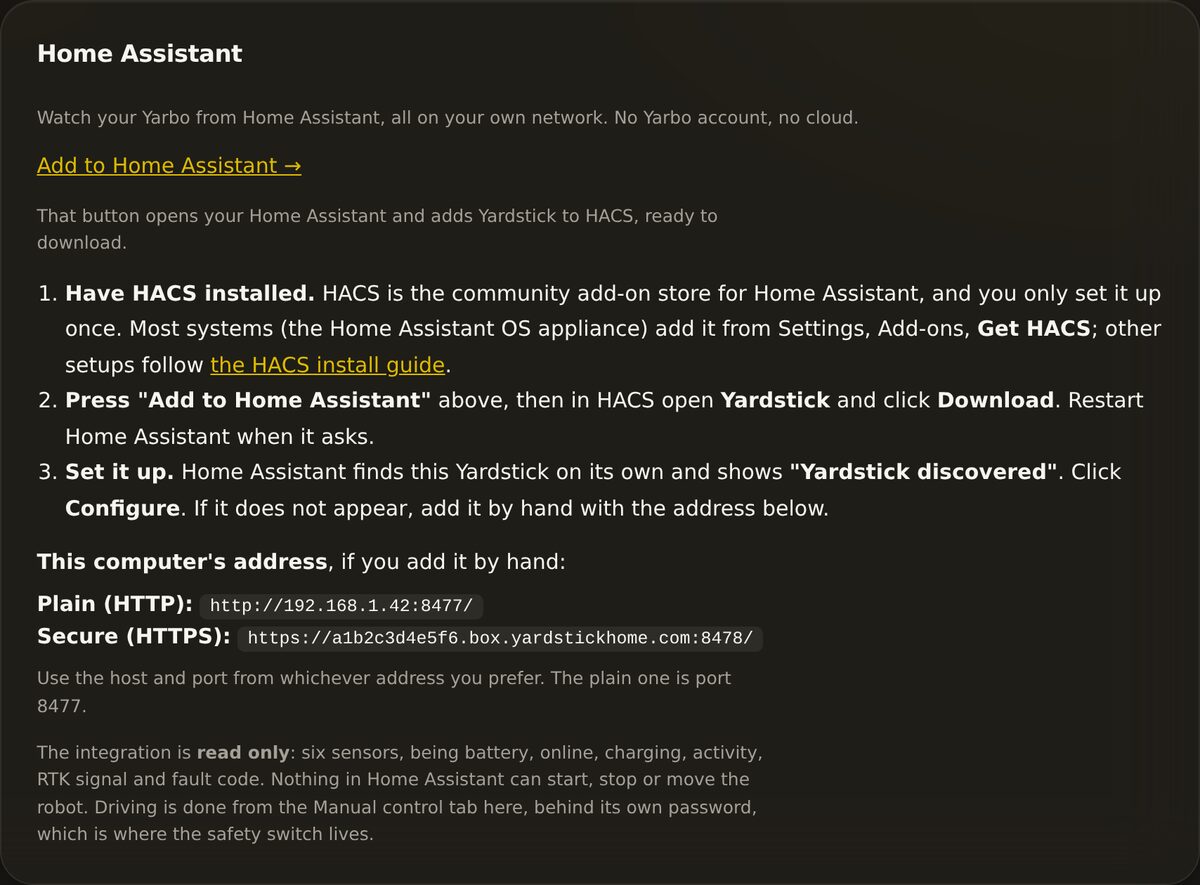
Have HACS installed
The community store for Home Assistant, set up once. On the Home Assistant OS appliance it is under Settings, Add-ons, Get HACS.
Press Add to Home Assistant
In Yardstick, open Settings → Home Assistant and press the button. It opens your Home Assistant with Yardstick ready in HACS. Click Download, and restart Home Assistant when it asks.
Configure
Home Assistant shows Yardstick discovered. Click Configure and your robots appear as devices. If it does not appear, add the integration by hand with the address shown on that Settings page.
Getting notifications on your phone
This is the main reason people wire Yardstick into Home Assistant. Yardstick has its own alerts, and they can push to a phone through ntfy or land in your email. But once the robot is in Home Assistant as ordinary sensors, you can send the notification with Home Assistant instead, and it goes anywhere Home Assistant already reaches.
That matters most on Android, where the Home Assistant companion app is very likely already on your phone, so this is one fewer app than setting up ntfy. It works exactly the same on an iPhone. And because you are writing the automation yourself, the alert can do more than appear on a screen: announce itself on a speaker, turn a lamp red, go to everybody in the house, or only bother you between certain hours.
You need the companion app installed and signed in, which gives you a notify service named after the device, something like notify.mobile_app_pixel_9. Home Assistant lists yours under Developer tools → Actions.
A fault code appears
The one worth setting up first. sensor.<robot>_fault_code is empty when all is well, so anything landing in it is the robot telling you it has a problem.
automation:
  - alias: "Yarbo reported a fault"
    trigger:
      - platform: state
        entity_id: sensor.<robot>_fault_code
    condition:
      - condition: template
        value_template: "{{ trigger.to_state.state not in ['', 'unknown', 'unavailable', 'none'] }}"
    action:
      - action: notify.mobile_app_<your_phone>
        data:
          title: "Yarbo has stopped"
          message: "Fault code {{ trigger.to_state.state }}."
The robot has gone quiet
binary_sensor.<robot>_online goes off when Yardstick stops hearing from the robot. Give it a few minutes before it tells you, so a brief blip in the yard does not wake your phone.
automation:
  - alias: "Yarbo went offline"
    trigger:
      - platform: state
        entity_id: binary_sensor.<robot>_online
        to: "off"
        for: "00:10:00"
    action:
      - action: notify.mobile_app_<your_phone>
        data:
          message: "No word from Yarbo for ten minutes."
It finished, or the battery is low
sensor.<robot>_activity and sensor.<robot>_battery cover the everyday ones. Battery is a normal percentage, so a numeric trigger works the way you would expect.
automation:
  - alias: "Yarbo battery is low"
    trigger:
      - platform: numeric_state
        entity_id: sensor.<robot>_battery
        below: 20
    action:
      - action: notify.mobile_app_<your_phone>
        data:
message: "Yarbo is down to {{ states('sensor.<robot>_battery') }} percent."<robot> is the name you gave the robot, in lower case with underscores, so a robot called Front Yard gives sensor.front_yard_battery. Or skip the guesswork: in Home Assistant go to Settings → Devices & services → Yardstick, open the device, and every entity is listed with its exact name. Copy them from there.If something is not right
No device appears
Check the integration was downloaded in HACS and Home Assistant was restarted. If "Yardstick discovered" never shows, add the integration by hand from Settings → Devices & services → Add integration with the address shown in Yardstick under Settings → Home Assistant. Home Assistant and Yardstick need to be able to reach each other on your network.
Everything shows unavailable
Home Assistant cannot reach Yardstick: it is not running, or its address has changed. Check the address under Settings → Home Assistant.
Values look frozen
Check that Yardstick itself is still recording, and still signed in under Settings → Your Yarbo. Home Assistant only ever shows what Yardstick last heard, and Yardstick hears the robot through your Yarbo account.