
The short version
Open the wall URL, press Full screen, and walk away. It shows machine state only, so there is no map and no coordinates on screen. It is safe to leave running where anyone can see it.
Support / Staying informed / Wall display
A full-screen board you can leave running on a TV or a spare monitor. It shows progress, speed, battery, and time left in type big enough to read across the room. When the robot needs help, the whole screen turns red until you deal with it.
One screen, three jobs. Leave it up and glance at it the way you would a clock.
Progress, speed, battery, and time left in large type you can read without walking over.
If the robot needs help, an alert takes over the whole screen in red with a repeating sound until you deal with it.
With several robots it cycles through them, and stops on whichever one needs attention.
Most devices with a web browser will do: a smart TV, a laptop wired to a screen, an old tablet propped in the corner. Point its browser at your Yardstick computer and go full screen. The wall display only reads and shows, so it is the one part of Yardstick that is forgiving about browsers. Chrome and Edge are still what we test, so if something looks wrong on a TV browser, check it in one of those before writing in.
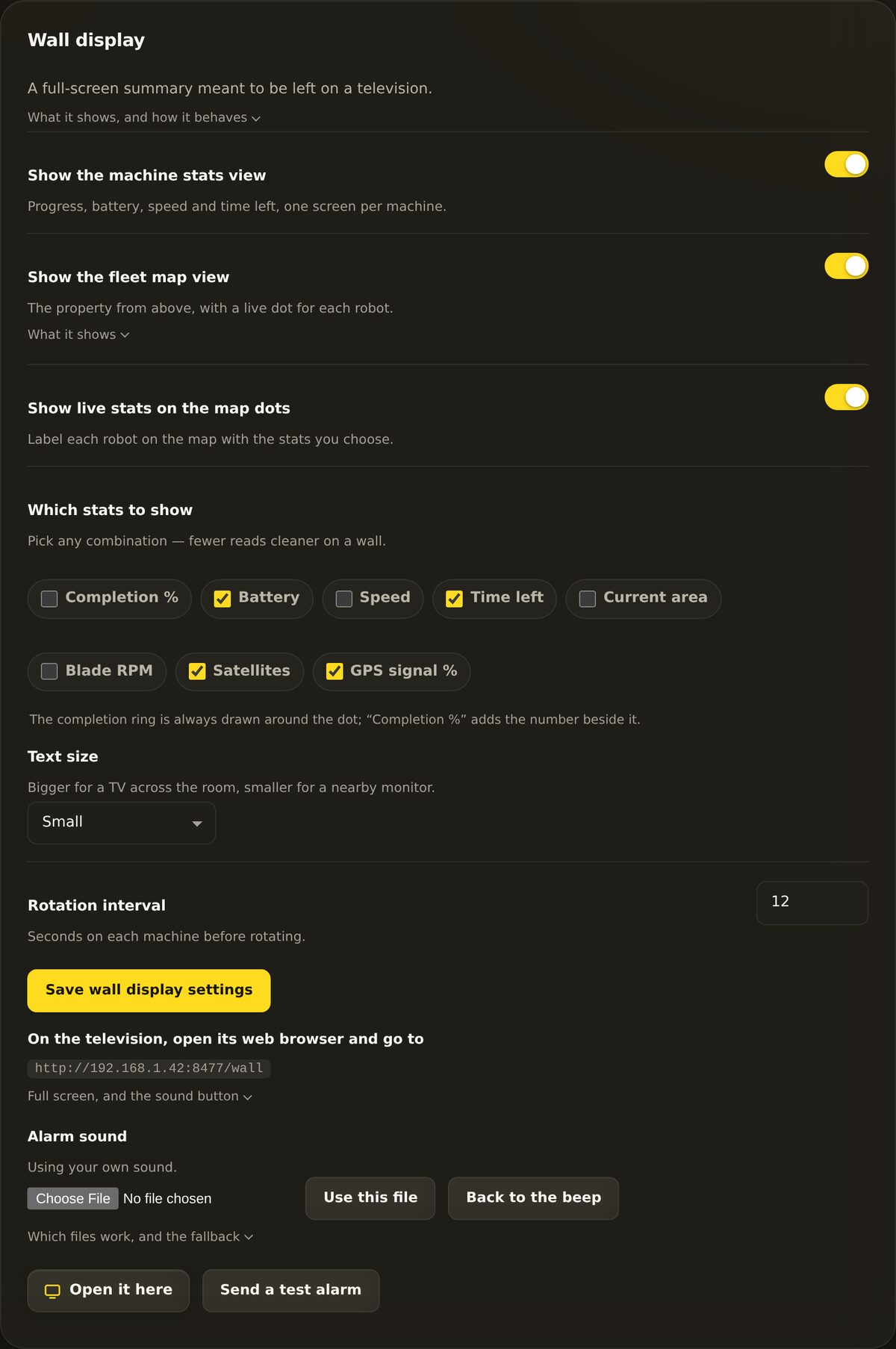
In a browser on the TV, go to http://<computer-ip>:8477/wall. The exact address for your setup is printed in Settings → Wall display, so you can copy it from there.
On the wall page, press the Full screen button. The board fills the whole display with no browser bars in the way.
Some TVs block sound until you interact with the page. When that happens, a one-time button appears to turn the alarm sound on. Press it once and the repeating alert can be heard from then on.
There is very little to set. Open Settings → Wall display to change how fast it rotates and what the alarm sounds like.
Not seeing what you expect on the wall? Open a support ticket and tell us the wall URL you used and what the settings panel shows. Because Yardstick runs on your own machine, we can usually point you straight at the fix.