Support / Getting started / Multiple robots & cores

Running more than one Yarbo

Have a second Yarbo, or a whole fleet? Yardstick handles as many cores as you run, all from one install. One computer, one subscription, unlimited robots / cores. Nothing extra to buy and nothing extra to configure.

Where it lives: Settings → Your Yarbo Add, name, and remove your cores from this one panel.
The short version In Yarbo, a robot and its core are the same thing. Yardstick treats each one as a core you add to your install. Add as many as you like. Everything else, the recording, the map, and the alerts, covers all of them at once with nothing extra to set up.

One install covers the whole fleet

You do not run a second copy of Yardstick for a second robot, and you do not pay again. A single install and a single subscription cover unlimited robots / cores. You just point Yardstick at each core, give it a name, and it joins the same map and the same history as the rest.

The one requirement: every core must be on the Yarbo account you signed in with. Yardstick lists what the account lists. A robot sitting on its dock may be silent, which shows as Waiting rather than a missing robot.

Adding another core

You added your first robot when you set Yardstick up. Adding the next one is the same short path. Open Settings → Your Yarbo and follow these steps.

  1. Press Find another robot

    In the Your Yarbo panel, click Find another robot. This starts adding a core alongside the ones you already have. Your existing robots stay exactly as they are.

  2. Pick it from your account

    Every machine on your Yarbo account is listed. Choose the one you are adding. If you have just added it in the Yarbo app, press Check my Yarbo account first so it appears.

  3. Give it a name

    Once the core is found, rename it to something you will recognize, like Front yard or Snow rig. Clear names make every list, map, and alert easier to read when you have more than one robot.
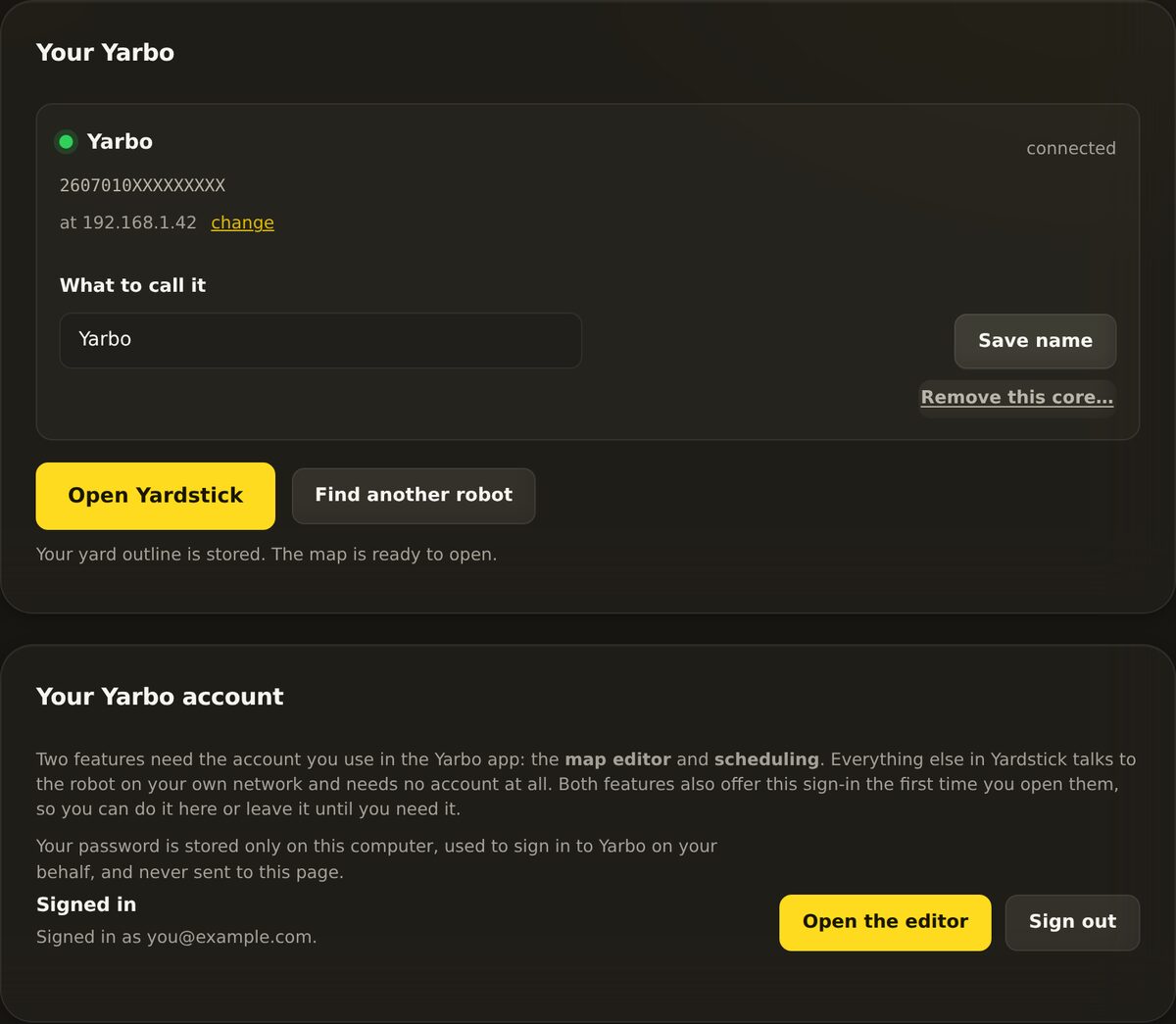
The Your Yarbo panel showing the robots on your Yarbo account and the list of cores that have been added.
Settings → Your Yarbo. Your robots come from your Yarbo account. Each core you add appears in the list here.

Managing your list of cores

Every core you have added shows up in a list on the Your Yarbo panel. From there you can keep it tidy:

Removing a core deletes its history for good Taking a core off the list also deletes the history recorded for it. That cannot be undone. Read the footprint Yardstick shows you first, and only remove a core when you are sure you no longer want its record.

How a fleet behaves

This is the part that needs no work. Once your cores are added, the whole app already understands all of them. There is nothing extra to switch on per robot.

Recording
Every core is recorded. Each robot's jobs and positions are logged just like your first one, with nothing extra to configure.
The map
All of your robots share the same map. You see where each one has been, together, on one view of your property.
Alerts
Alerts cover every core. If any robot needs attention, you hear about it the same way you would with one.
The wall display
The wall rotates between your robots and stops on whichever one needs attention, so a problem parks itself on screen. See the wall display guide.
One subscription, unlimited robots / cores Your Yardstick subscription is per computer, not per robot. One subscription covers every core you run from that install, with no per-robot fee and no upper limit. Add the second, the third, or the tenth at no extra cost.

Added a core and it is not showing up? Open a support ticket and tell us which Yarbo account the core is on, and what the panel said. Because Yardstick runs on your own machine, we can usually point you to the exact setting.

Related

Yardstick is an independent tool for Yarbo robots. Not affiliated with or endorsed by Yarbo Inc. · © 2026 Yardstick Technologies LLC.