Support / Map / Map editor toolbar Search help
Compact or expanded Map editor toolbar
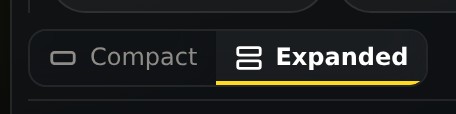
The Map editor's toolbar comes two ways. Expanded spells out every control in labeled groups. Compact fits them into one row of picture buttons, so the map gets more of the screen. Switch whenever you like: Yardstick remembers your choice.
Expanded
Expanded is how the Map editor starts. Every control has its name next to it, in groups: Move around (Select, Pan, Move, Lasso), Points (Add point, Remove point), Shapes (Add shape and the starting outline), Lines (Throw line, Blowing line, Driveway sweep) and History (Undo, Redo, Save changes). Below them, the toolbar shows the settings of the shape you have selected.

To switch to Compact, press Compact in the switch. On a wide screen the switch sits at the right end of the toolbar; on a narrower window it moves onto its own line under the groups, as in the picture.
Compact
Compact puts everything in one row of picture buttons, each the same size with a short name under it: Select, Pan, Move, Lasso, Shape ▾ and Lines ▾, Add point, Remove point and Driveway sweep, then Undo, Redo and Save at the right. Shape ▾ opens a menu with the starting outline and Add shape; Lines ▾ holds the throw and blowing line tools.

The Layers button
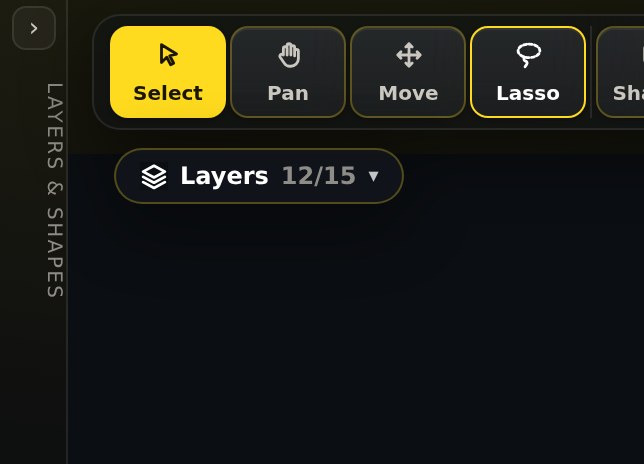
When you fold away the side panel with its ‹ button, a Layers button appears at the corner of the map, just under the toolbar, with how many layers are showing. Press it to turn layers on and off without opening the side panel again.
Good to know
- Only the layout changes. Both ways reach the same tools, and switching does not touch your map or the changes you have not saved yet.
- Each computer remembers its own choice, so you can use Compact on a laptop and Expanded on a big monitor.
- The same in both apps. The installed Yardstick and Yardstick Anywhere have the same switch.