Support / Your data / Backups
Everything Yardstick records lives in a database on your own computer. Your data never leaves your machine, so keeping a copy is up to you. This page shows how to make a backup, restore one, and clear out old recordings when disk gets tight.
.zip file you make in three quick steps. It holds your recordings, your settings, and your custom alarm sound. To restore, pick that zip and restart Yardstick. The whole thing stays on your computer, so nothing goes to a cloud and no account is involved.Yardstick stores everything it records in a single database on the computer where it runs. You do not have to hunt for it: the exact folder is printed at the bottom of the Settings page. Because the data is yours and stays local, backups are yours to keep and nobody else holds a copy.
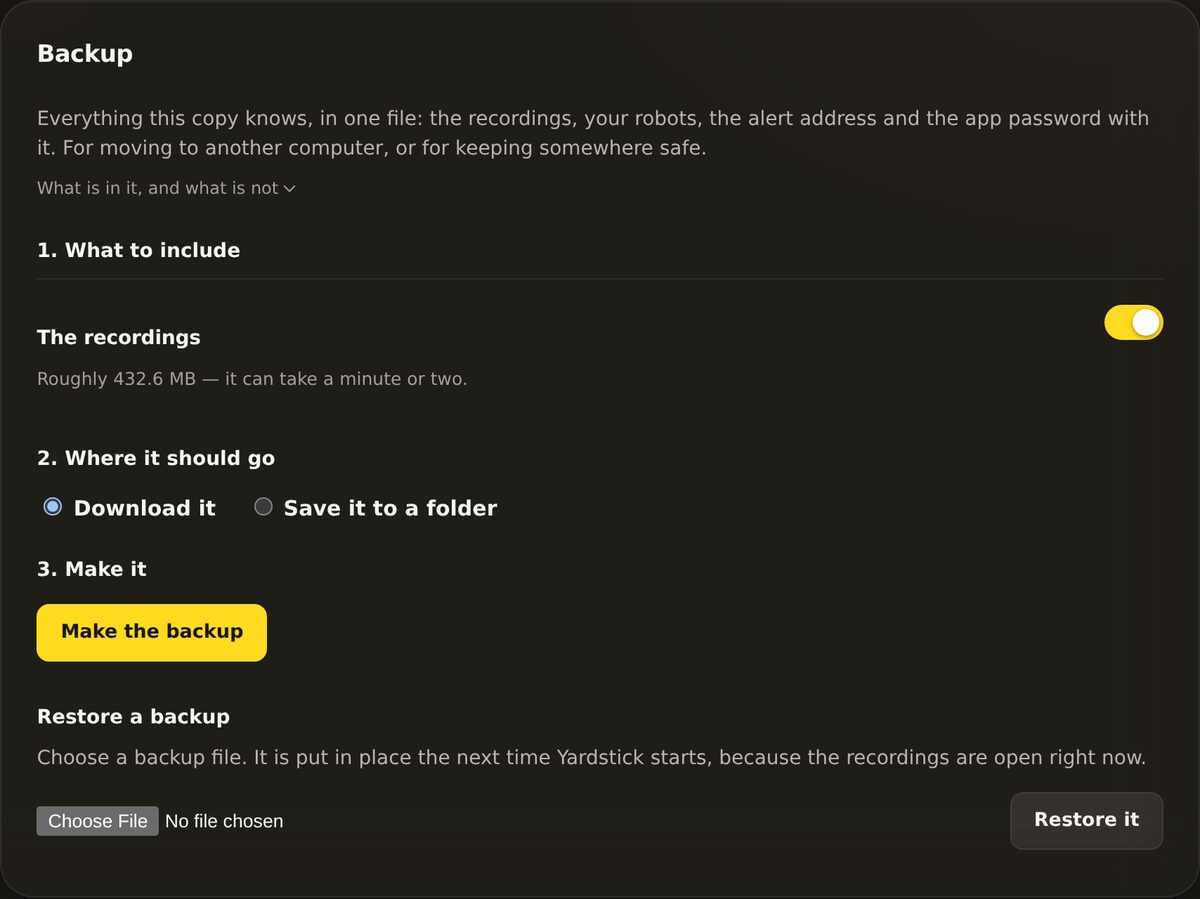
Open Settings → Backup. You are building one zip bundle, and the panel walks you through it top to bottom.
Under What to include, the The recordings toggle is on by default, with the size shown next to it. Leave it on for a full backup. Turn it off if you only want your settings and want a smaller file.
Under Where it should go, pick Download it (the default) to save it the usual way, or Save it to a folder to write it straight to a place you choose.
Press Make the backup. Yardstick copies your database in a safe way, so a running recorder cannot corrupt the copy, and hands you one .zip file.
The backup contains your database, your settings, and your custom alarm sound if you set one. It does not include the computer's install identity or your license files, so it is safe to move between machines.
Restoring puts a saved backup back in place. It happens on the next start, because the database is in use the whole time Yardstick is running.
In Settings → Backup, choose Restore a backup.
Select the .zip file you saved earlier, then press Restore it.
The restore is applied the next time Yardstick starts. Your existing files are not thrown away: they are moved aside and renamed with a timestamp, so nothing is lost if you change your mind.
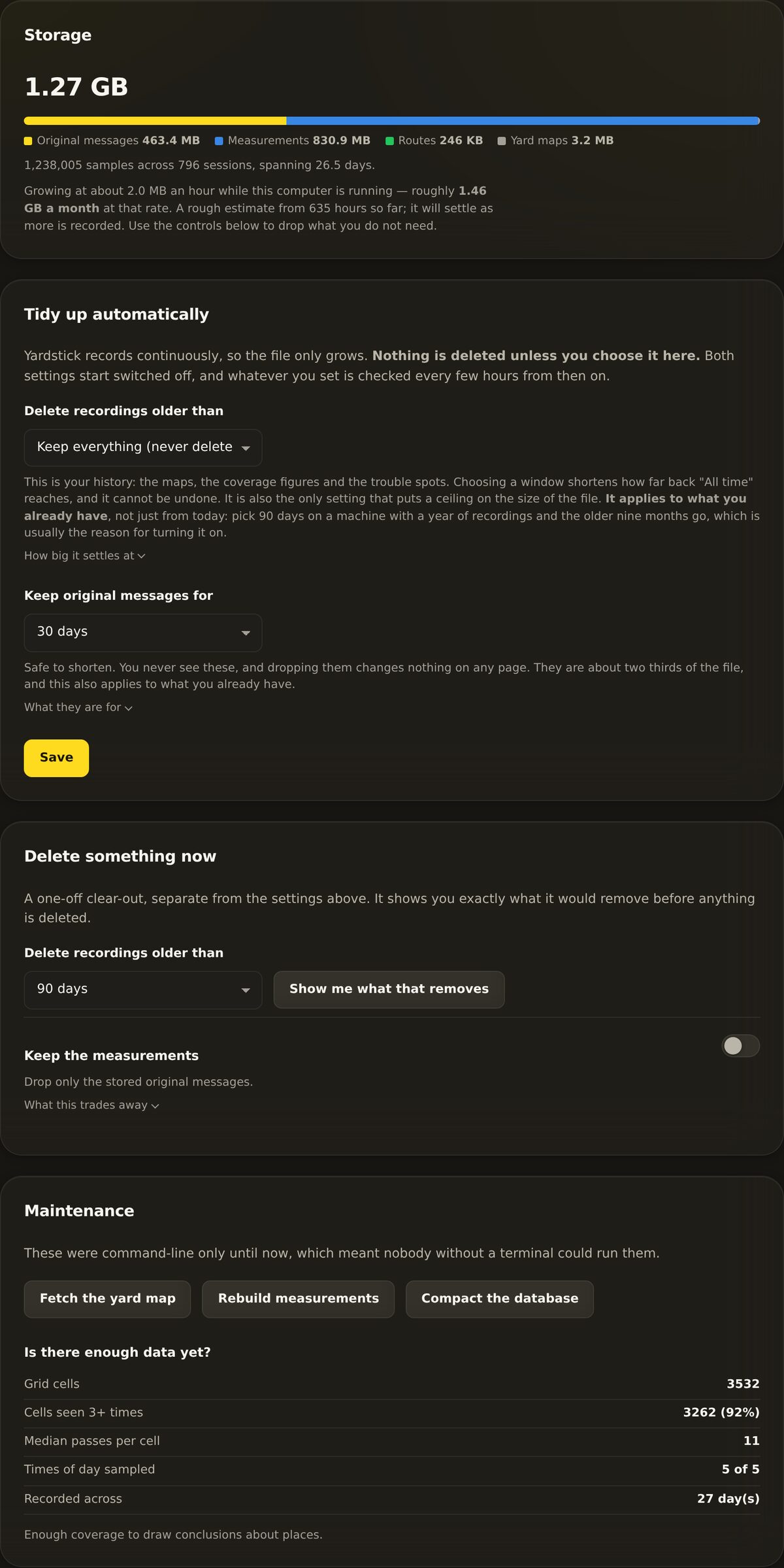
Open Settings → Storage to see a breakdown of what is using your disk, then clear out what you no longer need. Two tools do the heavy lifting.
Use Delete recordings older than to trim the oldest jobs. The choices are 1 year, 6 months, 90 days (the default), 30 days, or Everything. Before anything is removed, press Show me what that removes to preview exactly what will go, then confirm with Yes, delete permanently.
If you want the space back but do not want to lose your jobs, turn on the Keep the measurements toggle. It drops only the stored original messages. That reclaims most of the space while keeping every map and report intact. The one trade-off: new measurements cannot be added back into those older recordings later.
The Storage panel also holds a few housekeeping tools:
No. Everything Yardstick records stays in a database on your own computer. That is why backups are yours to make and keep, and why nobody else has a copy.
A restore is applied on the next start, because the database is in use while the app runs. Restart Yardstick and check again. Your previous files were renamed with a timestamp, not deleted, so nothing was lost.
Yes. Make a backup on the old machine, restore it on the new one, and restart. The backup does not carry the install identity or license files, so re-register your license on the new computer, since a license is for one computer.
It can. If you would rather keep your maps and reports, turn on Keep the measurements instead: it drops only the stored original messages, reclaims most of the space, and leaves every map and report in place. The trade-off is that new measurements cannot be added to those older recordings later.
Not sure whether to keep or clear something? Open a support ticket and tell us what you are trying to free up. Because Yardstick runs on your own machine, we can usually point you to the right setting.