Support / Yardstick Anywhere / Moving from your computer Search help
Move from Yardstick on your computer to Yardstick Anywhere
One button on your computer starts it. Your yard, its history and everything you set up come with you, and the unused part of a paid license becomes credit on Yardstick Anywhere.
1. On your computer
Open Settings, then Yardstick Anywhere
In Yardstick on your computer, press Settings at the top and choose Yardstick Anywhere under Account on the left. Press Move to Yardstick Anywhere.
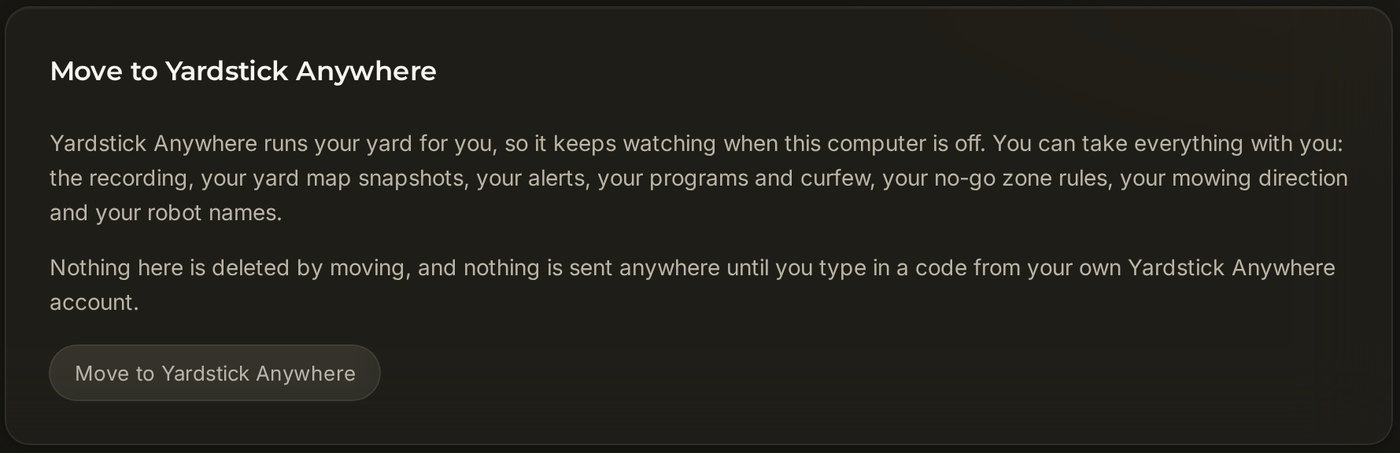
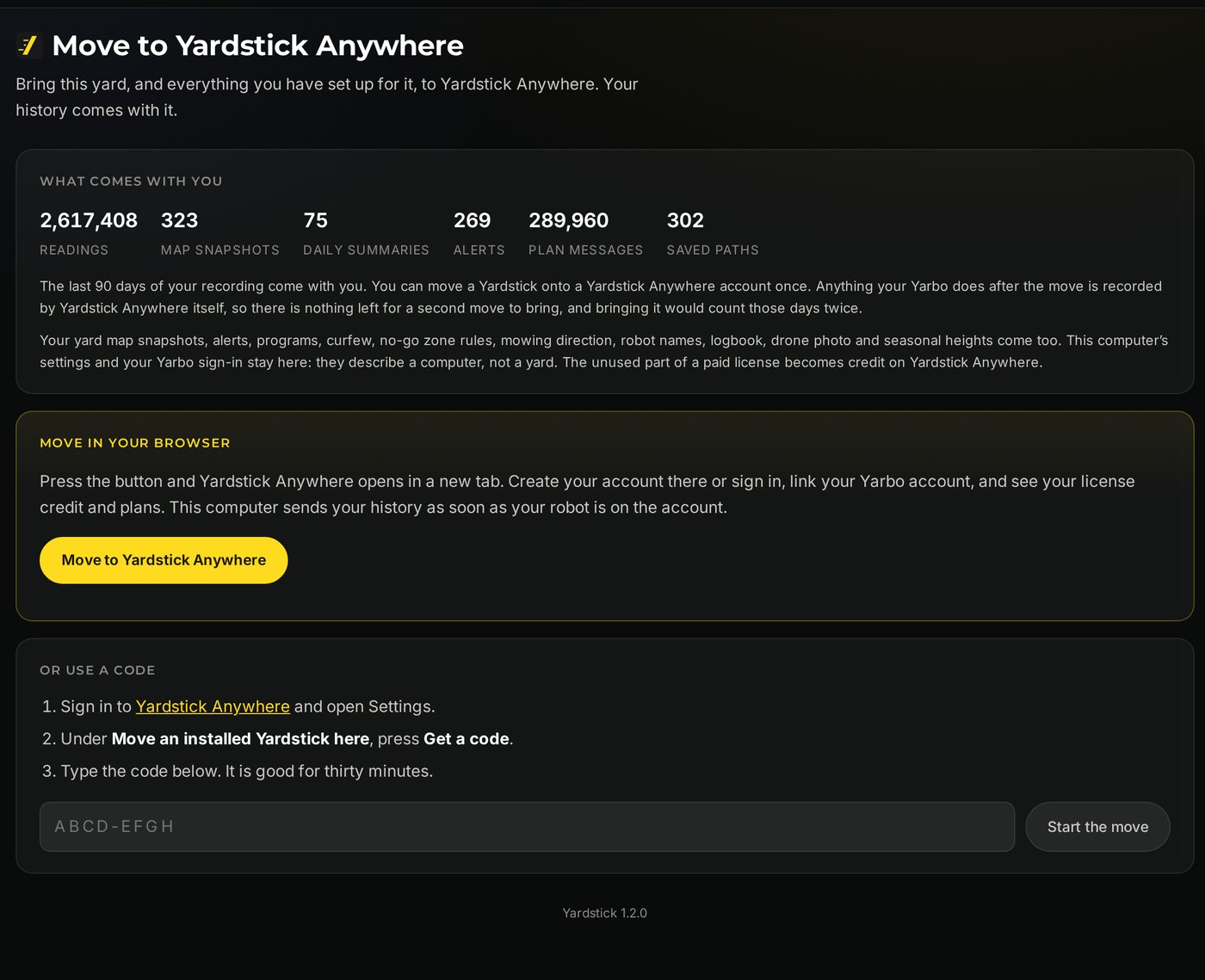
Check what comes with you, and press the yellow button
The move page counts what will come across: readings, map snapshots, daily summaries, alerts and saved paths. Press Move to Yardstick Anywhere in the yellow box. Your browser opens Yardstick Anywhere in a new tab.
2. In your browser
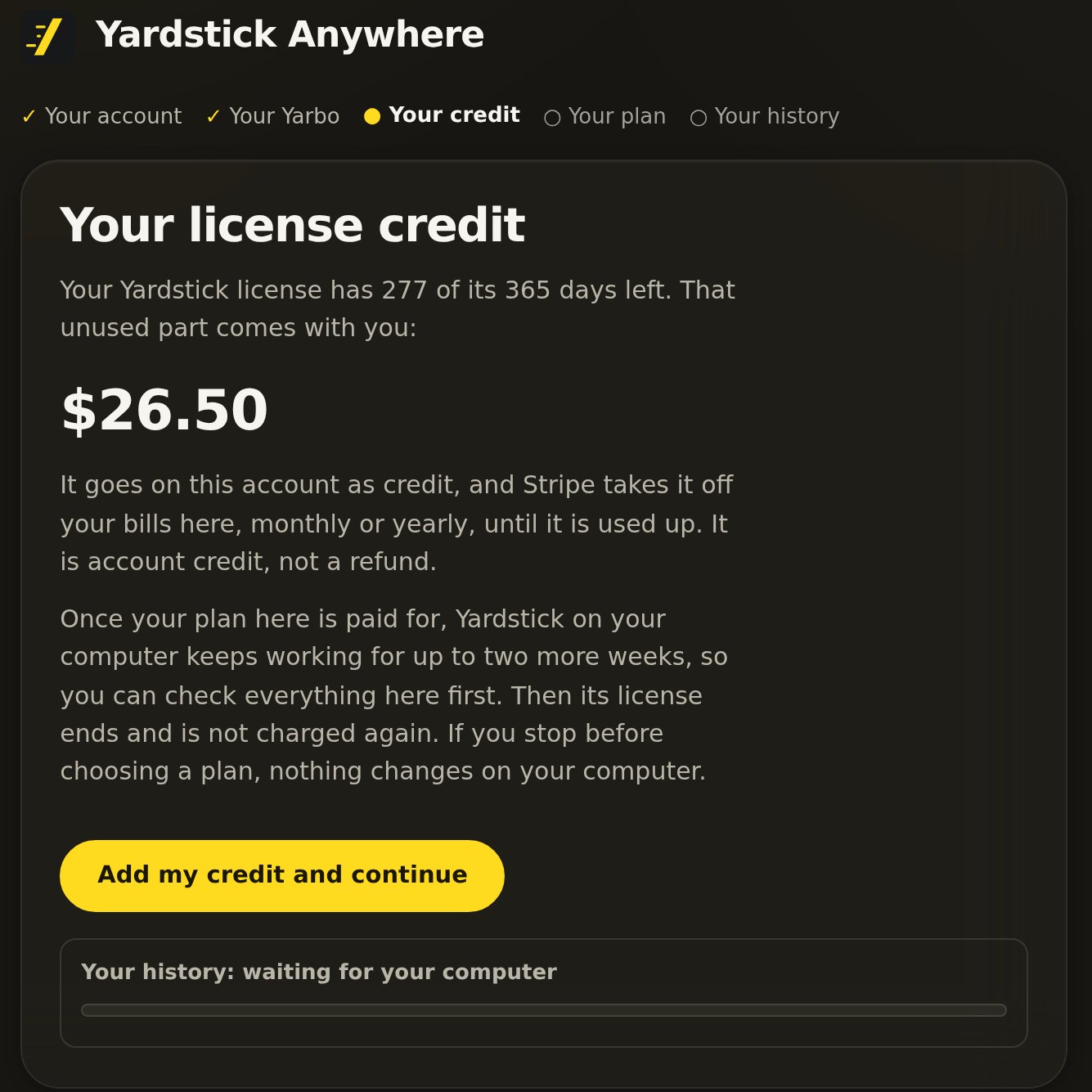
A strip along the top shows where you are: your account, your Yarbo, your credit, your plan, and your history.
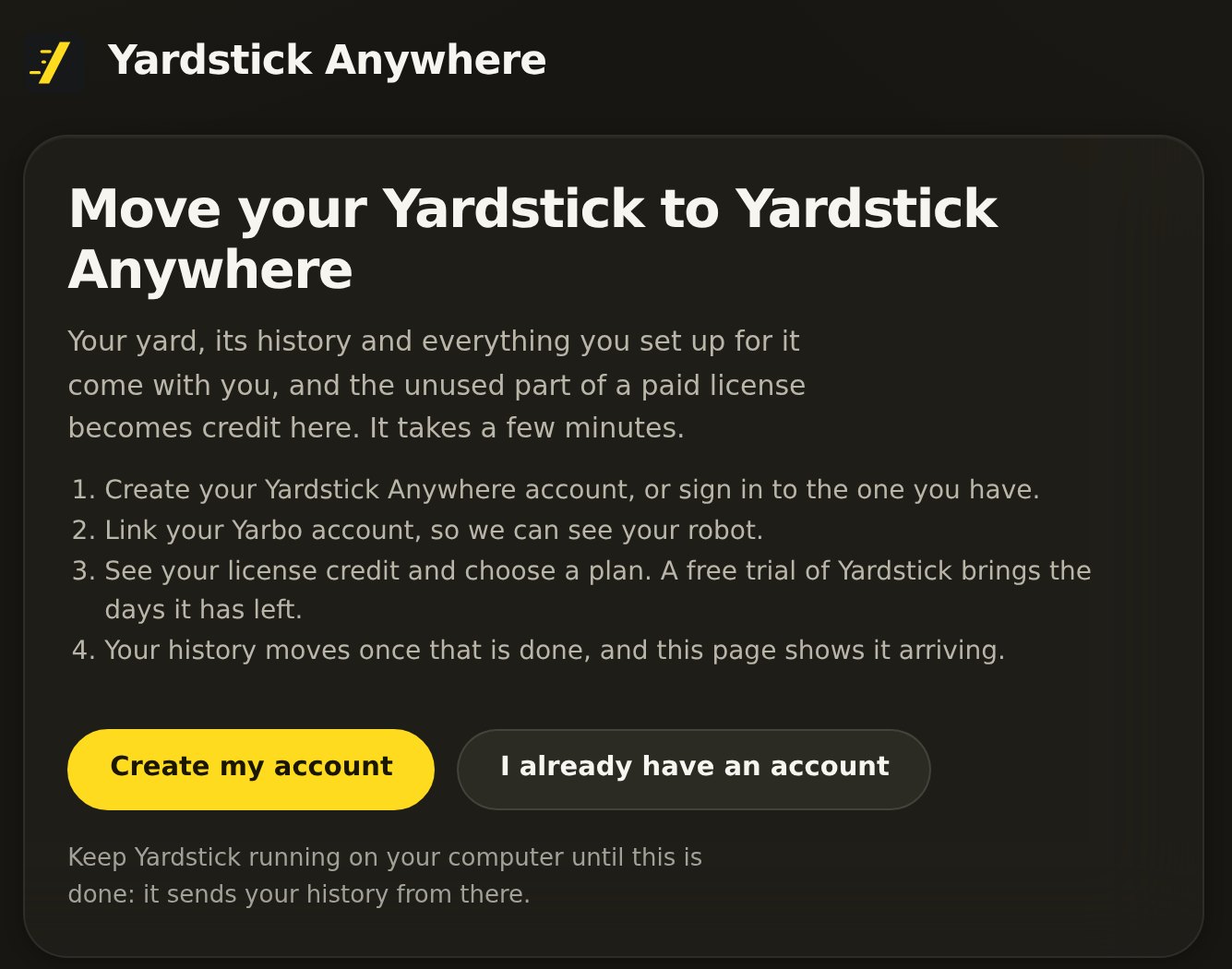
Create your account, or sign in
New to Yardstick Anywhere? Press Create my account. Already have one? Press I already have an account. Either way you come straight back to the move.
Link your Yarbo account
Type the email and password you use in the Yarbo app. Yardstick Anywhere checks that the robot you are moving is on that account.
See your license credit
If you bought a Yardstick license, the unused part of it is shown as credit. Press Add my credit and continue. It comes off your first bill on Yardstick Anywhere. Your computer's license keeps working until your plan is paid for, then for up to two more weeks, so you can check everything first.
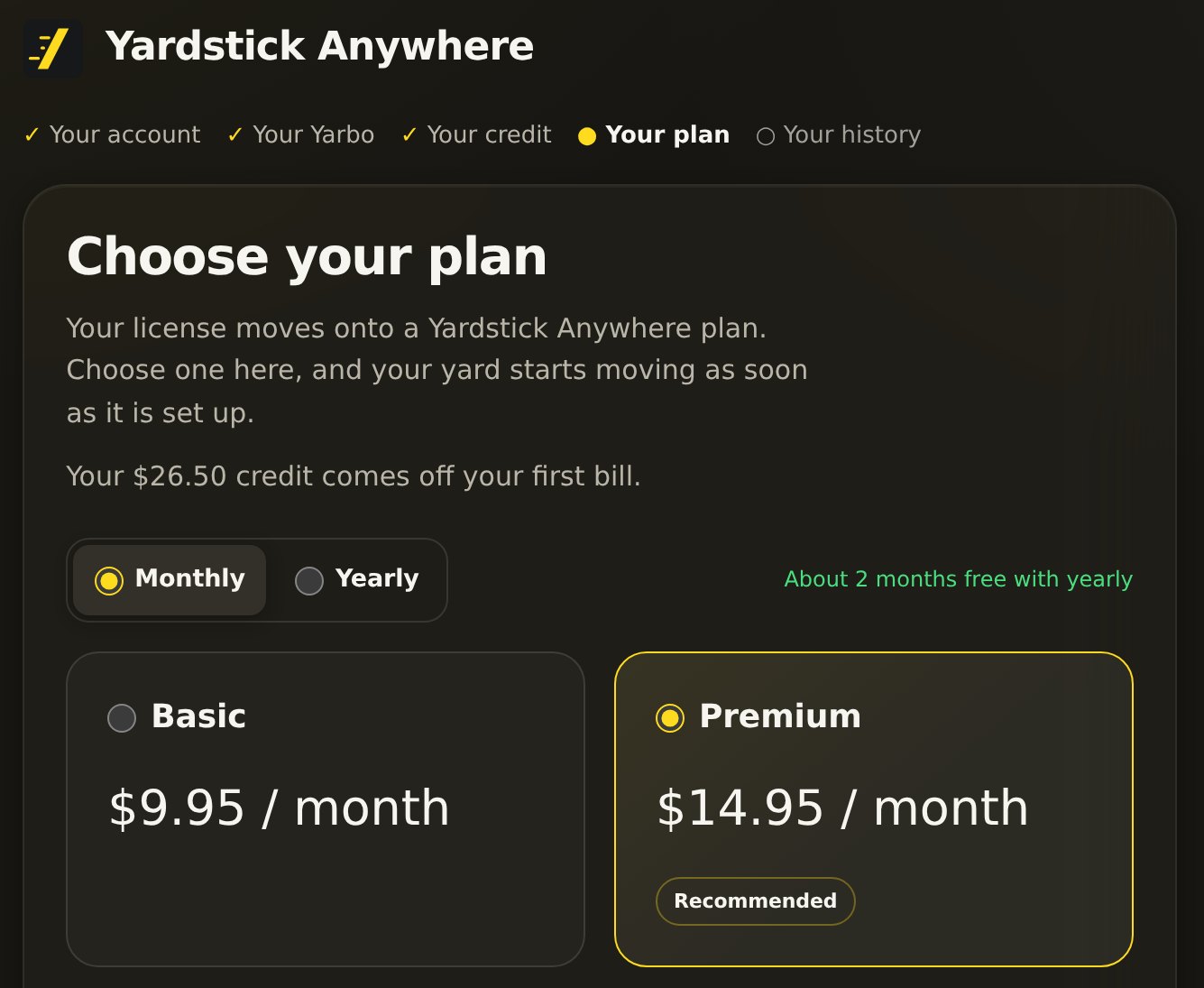
Choose your plan
Pick Basic or Premium, monthly or yearly, and check out. With a paid license, choosing a plan is part of the move. On a free trial, your trial's remaining days come with you.
Your history moves
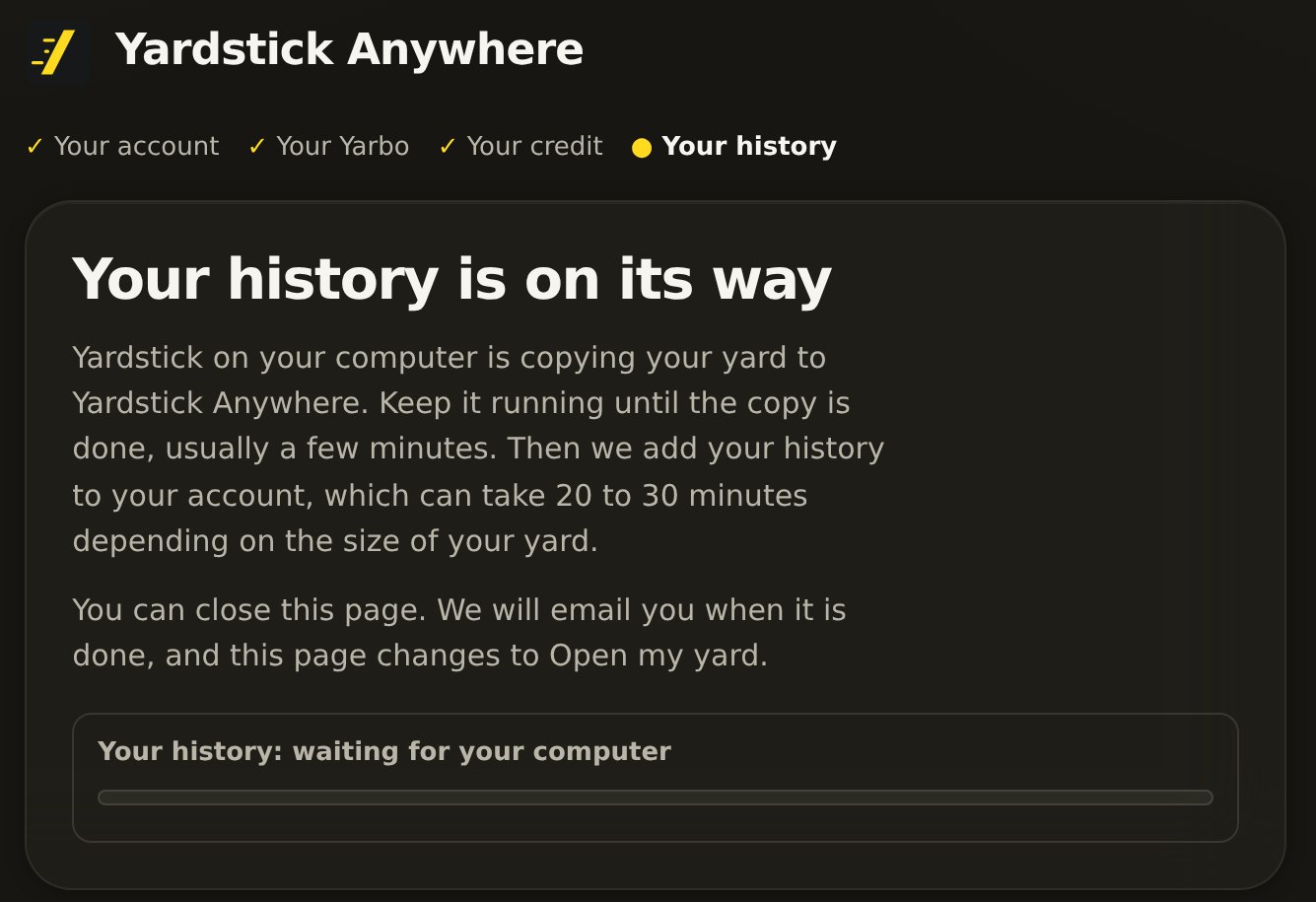
As soon as your plan is set up, Yardstick on your computer starts copying your yard. Keep it running until the copy is done, usually a few minutes. Then Yardstick Anywhere adds your history to your account, which can take 20 to 30 minutes for a big yard. You can close the page: we email you when it is done.
After the move
If the browser tab did not open: use a code
Get a code on Yardstick Anywhere
Sign in at portal.yardstickhome.com and open Settings. Under Move an installed Yardstick here, press Get a code.
Type it on your computer
On the move page in Yardstick on your computer, type the code into Or use a code and press Start the move. The code is good for thirty minutes.
It says a Yardstick was already moved here
Each Yardstick Anywhere account takes one move. Yardstick Anywhere has recorded your robot ever since, so a second move would count those days twice. Open a ticket if you need to move another one.
The move stopped
Make sure the computer is on and Yardstick is running: it carries on from where it stopped.