Support / Robot / Drive off the dock Search help
Drive off the dock
Under an awning, beside a wall, or just in a weak spot, Yarbo can struggle to get GPS on its dock, and a job may not start. Often a few feet is all it takes. With Drive off the dock, Yardstick drives Yarbo straight out into the open first, gives it time to pick up a better signal, then starts the job.
What happens before a job
Drive straight out
Yarbo drives straight forward the distance you chose, slowly, about half a mile an hour. It measures the distance with its wheels, so it does not need GPS for this.
Stop and wait
It stops and waits the time you chose, to get GPS in the open. Nothing on the attachment is turned on while it drives off.
Start the job
Yardstick starts the job. Yarbo decides whether it has GPS. If the job has not begun a few minutes later, you get an alert.
Which jobs: every job Yardstick starts while Yarbo is on its dock. That means plans you start from the Plans page, scheduled programs, Run now, and carrying on after quiet hours or a charge. Jobs started in the Yarbo app, and Yarbo resuming a job on its own, start from the dock as before.
Know the risk first
Turn it on, step by step
Turning it on is never one click. Yardstick walks you through each step in order, and the switch stays off until every step is done.
Open Drive off the dock
In Yardstick, open Settings and choose Drive off the dock under Robot. The page explains what happens and what the risks are. Read all of it. If you have more than one Yarbo, pick the one you are setting up in the Setting for list at the top.
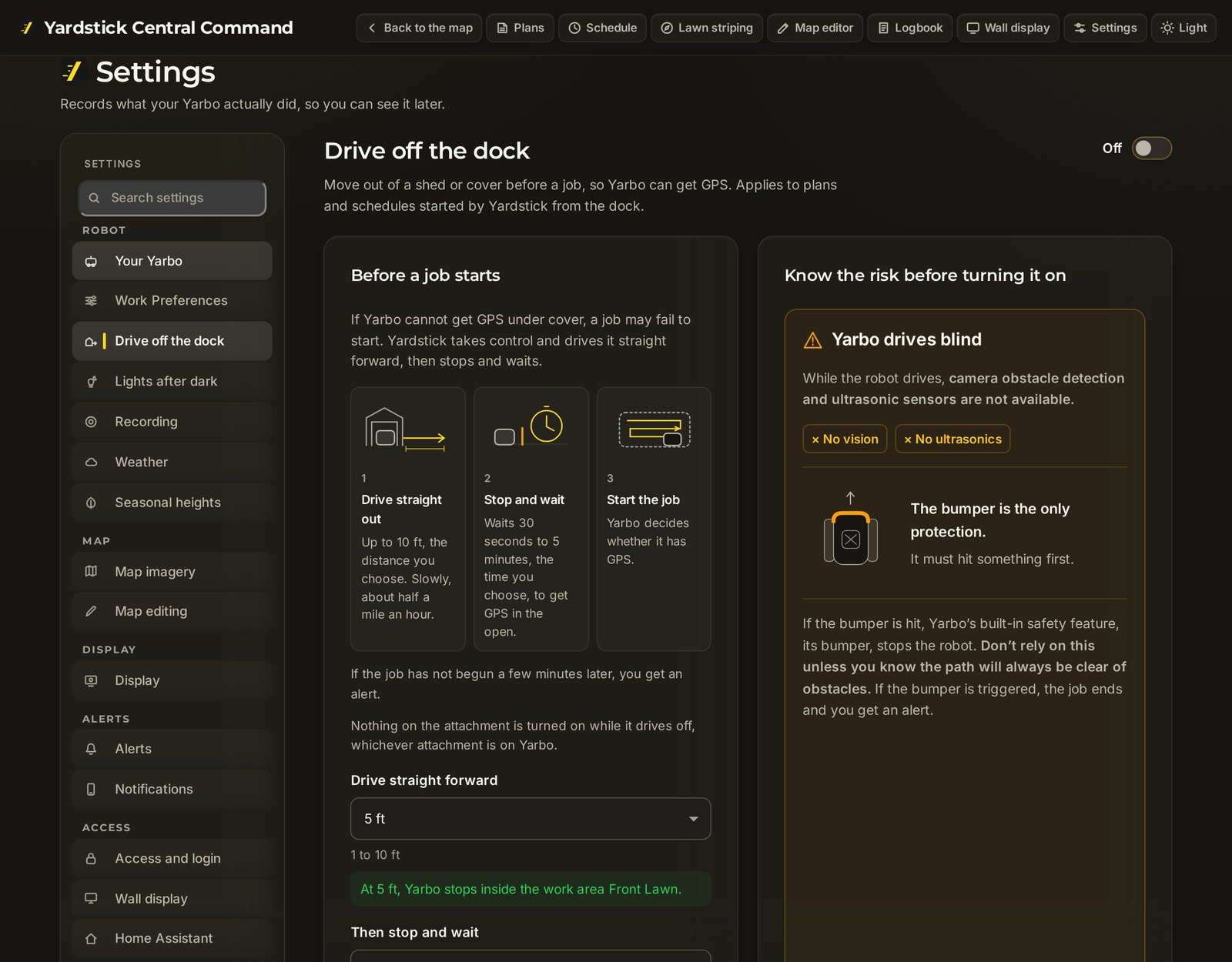
The settings page, switched off. Choose the distance and the wait
Under Drive straight forward, choose how far Yarbo drives: 1 to 10 ft. Yardstick checks each distance against Yarbo's map. It must stop Yarbo inside a work area, not on a pathway, and it must not stop in or drive through a no-go zone. The green line under the distance tells you it passes. A distance that does not pass is marked "does not stop in a work area", and the page lists the distances that do.
Under Then stop and wait, choose 30 seconds to 5 minutes, enough time for Yarbo to get GPS in the open.
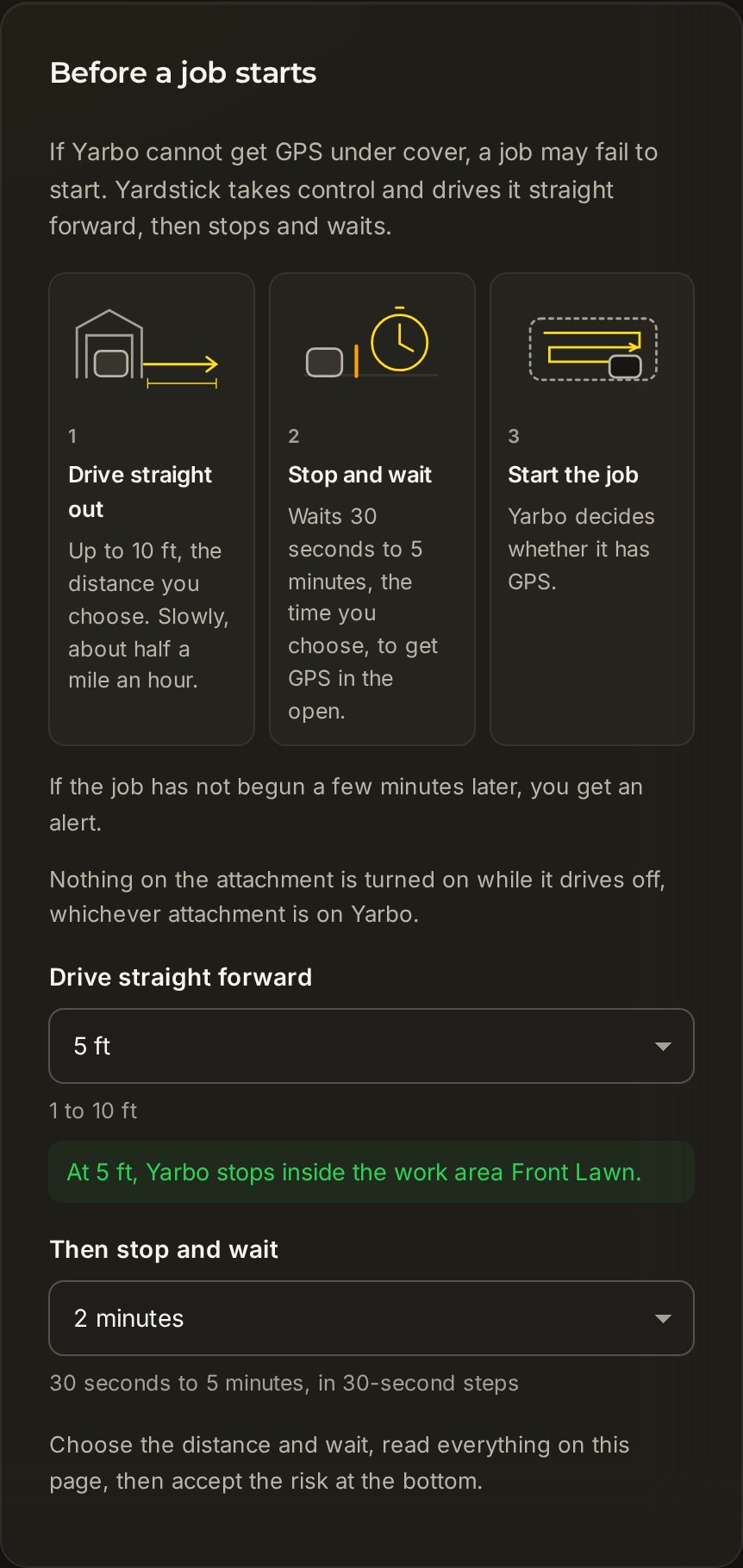
5 ft passes: Yarbo stops inside the work area. The wait is 2 minutes. Accept the risk
At the bottom of the page, under Accept the risk of driving blind, read the statement, tick the box, and press Accept. Keep it off leaves everything as it was. Accepting does not turn it on yet: the dry run comes next.
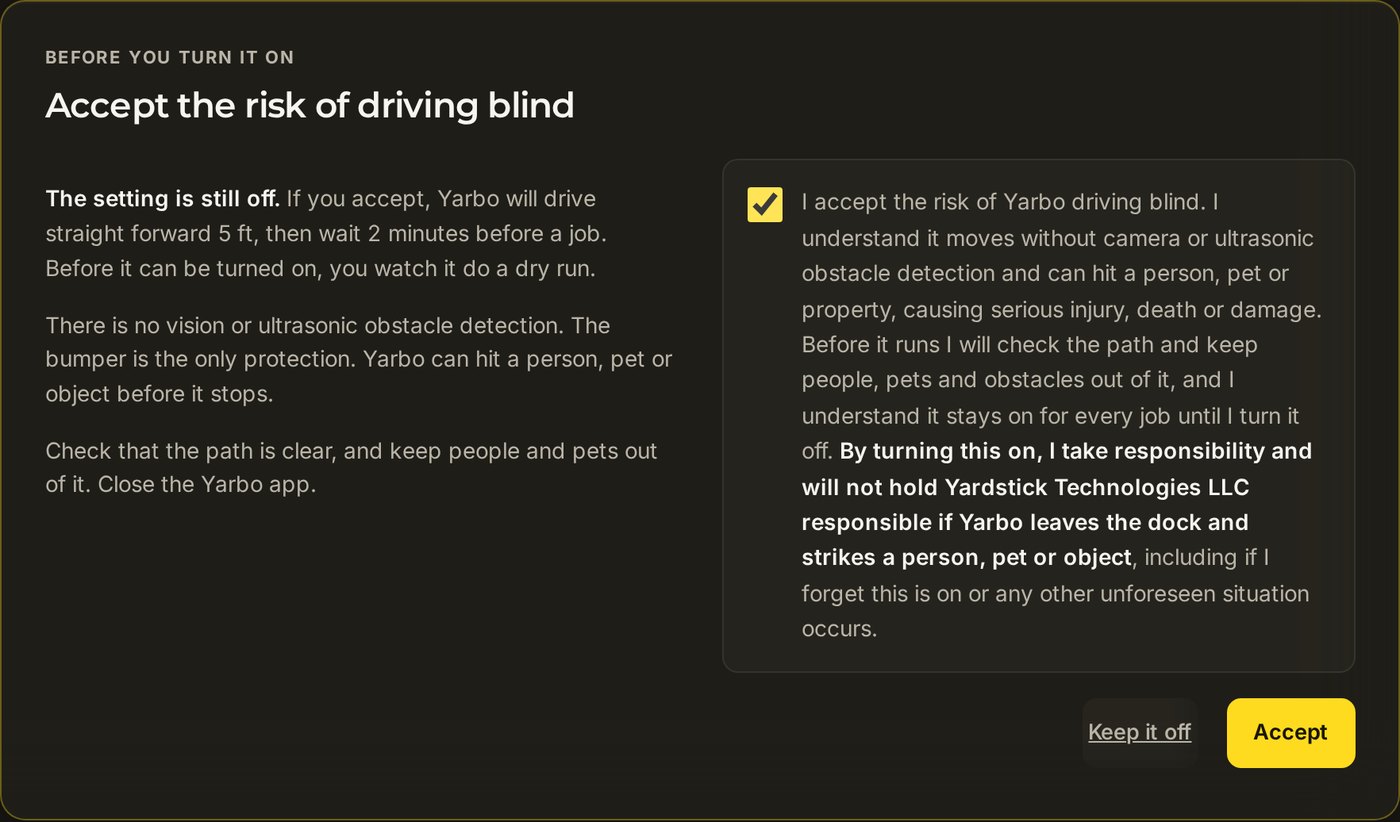
Tick the box, then Accept. Do a dry run, and watch it
The dry run is the drive off on its own: from its dock, Yarbo drives straight forward the distance you chose and stops. No wait and no job. Before it starts, confirm all three:
- Yarbo is on its dock.
- The path straight out of the dock is clear of people, pets and objects.
- You are watching Yarbo and can stop it.
Then press Start the dry run.
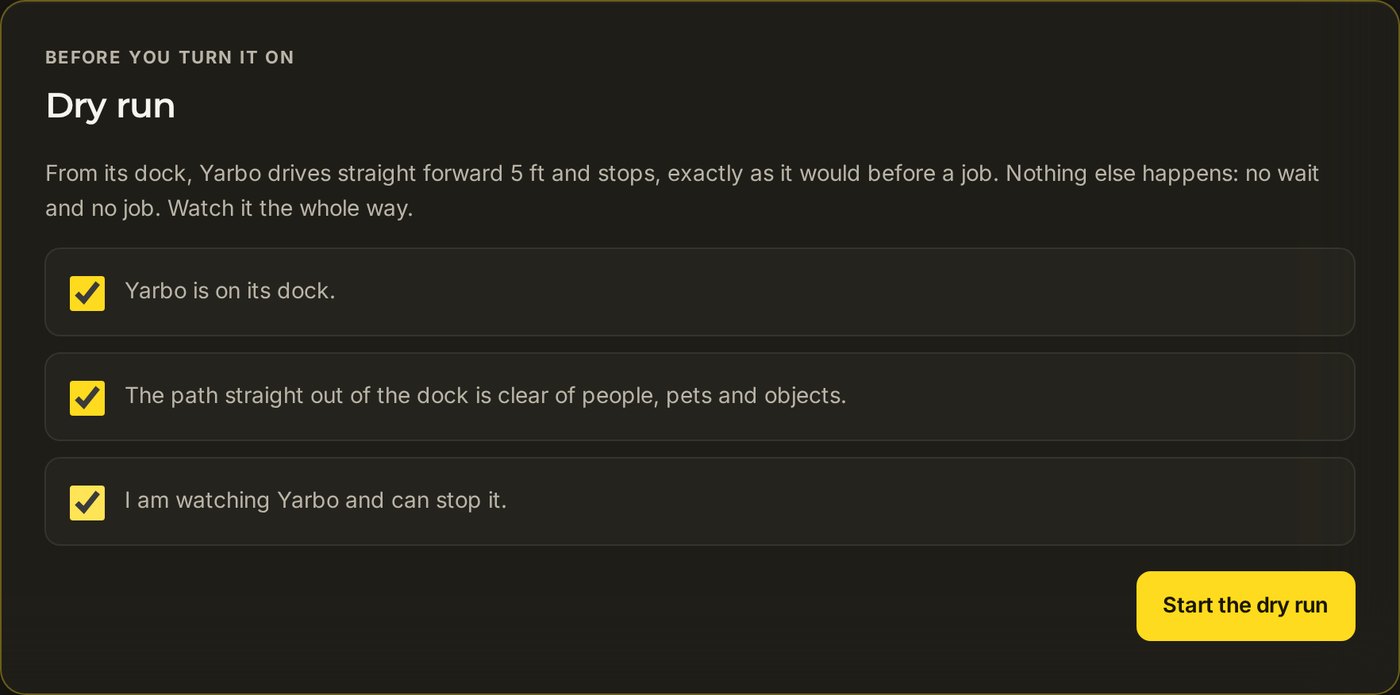
All three ticked: Start the dry run. While it drives, the page shows how far it has gone. Stop stops it straight away.
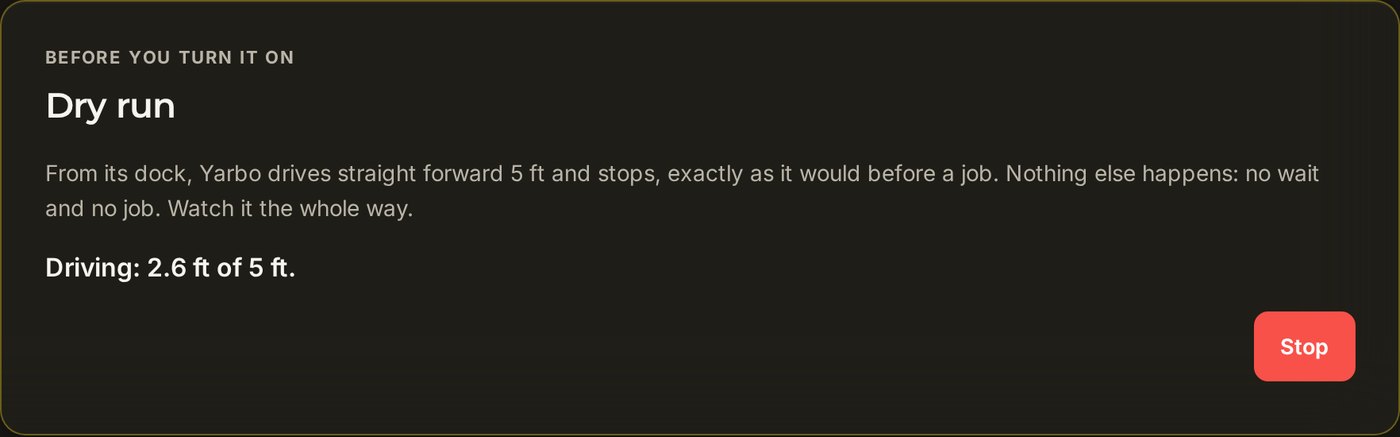
Under way, with Stop. Confirm it passed
When Yarbo has driven the distance and stopped, the page asks: Did Yarbo drive straight out and stop where you expected, inside the work area? Press Yes, it passed or No, it did not pass. Send it back to the dock brings Yarbo home.
A dry run only passes if Yarbo's wheels say it really drove the whole distance. If something stopped it short, fix what went wrong and press Do another dry run.
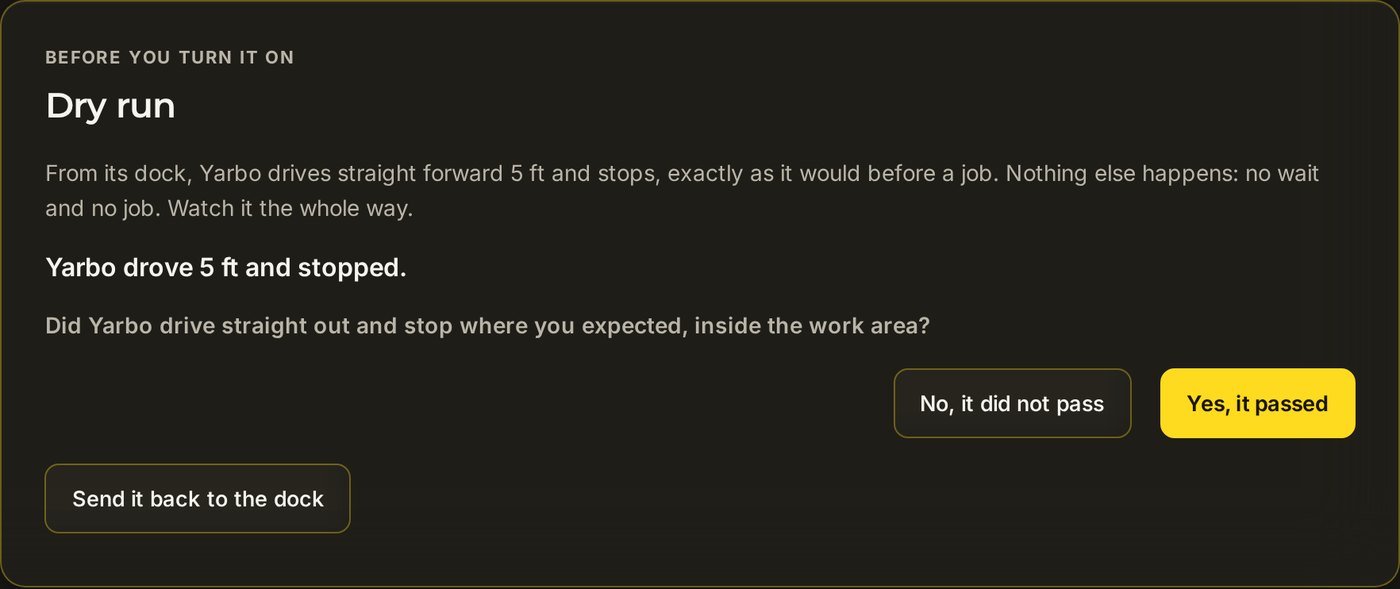
Answer the question. 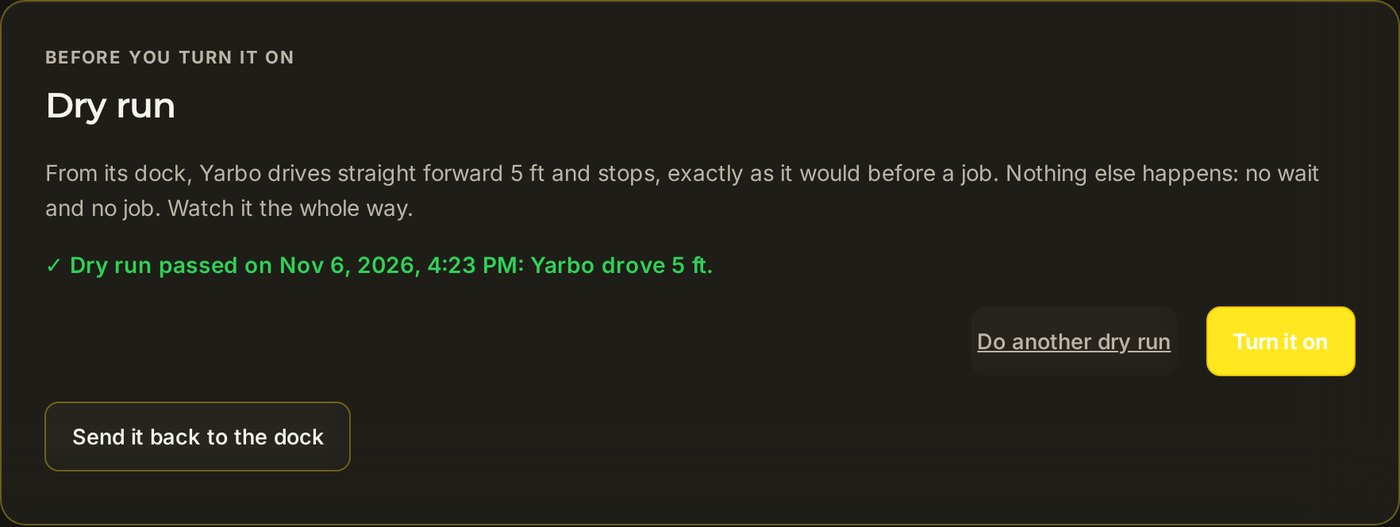
Passed: now Turn it on. Turn it on, after one last check
Press Turn it on (or flip the switch at the top). Yardstick shows a last check that sums up what you are turning on. Press Yes, turn it on, or Go back, keep it off to leave it off.
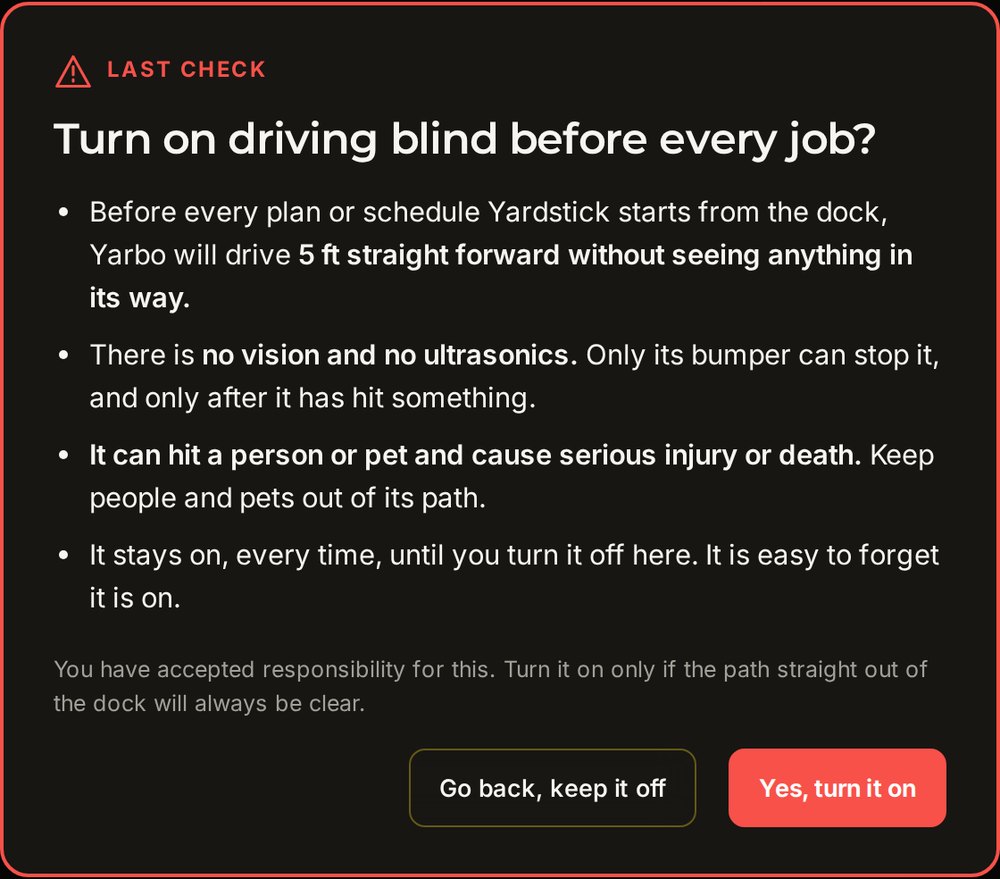
The last check. It is on
The switch at the top reads On. Close the Yarbo app, then start a plan in Yardstick or let a schedule run. From the dock, Yarbo drives off first.

On.
Turn it off
Flip the switch at the top of Drive off the dock to Off. It saves straight away, and from the next job Yarbo starts from the dock as usual.
- Turning it off clears your acceptance and your dry run. To turn it on again, now or months later, you go through every step again: tick the box and press Accept, then watch a new dry run with its three confirmations and confirm it passed.
- Changing the distance turns it off. A new distance has had no dry run, so it stays off until you watch one at that distance.
What stops it, and what you are told
Something gets in the way
If the bumper is hit, Yarbo's own safety feature stops it where it is. The job ends and you get an alert. Check Yarbo and clear its path before starting again.
The map check fails before a job
Yardstick checks the distance against the map again before every drive off. If the check fails then, or the dock has moved since the dry run, Yarbo does not drive off: the job starts from the dock as usual, and you get an alert saying why.
It drove off but the job did not start
If the job has not begun a few minutes after the drive off, you get an alert. The usual cause is still no GPS fix where Yarbo is sitting. Check on it, or choose a longer distance and do a new dry run.
Stop, Pause and sending it home
Stop, Pause, sending Yarbo home, quiet hours, or driving it by hand all cancel a drive off under way. If Yarbo reports a fault while driving off, Yardstick stops it and leaves it there; the job ends and you get an alert.
The dry run says Yarbo did not move
Close the Yarbo app and try again: only one app can drive the robot at a time.